

Configuring via the Dashboard
1
Open the subscription
Go to Billing → Subscriptions, or open a customer and select their subscription, from either the Subscription Details page or the customer’s Overview tab subscriptions list.
2
Open Alert Settings
Click the three-dot menu (⋮) on the subscription and select Alert Settings.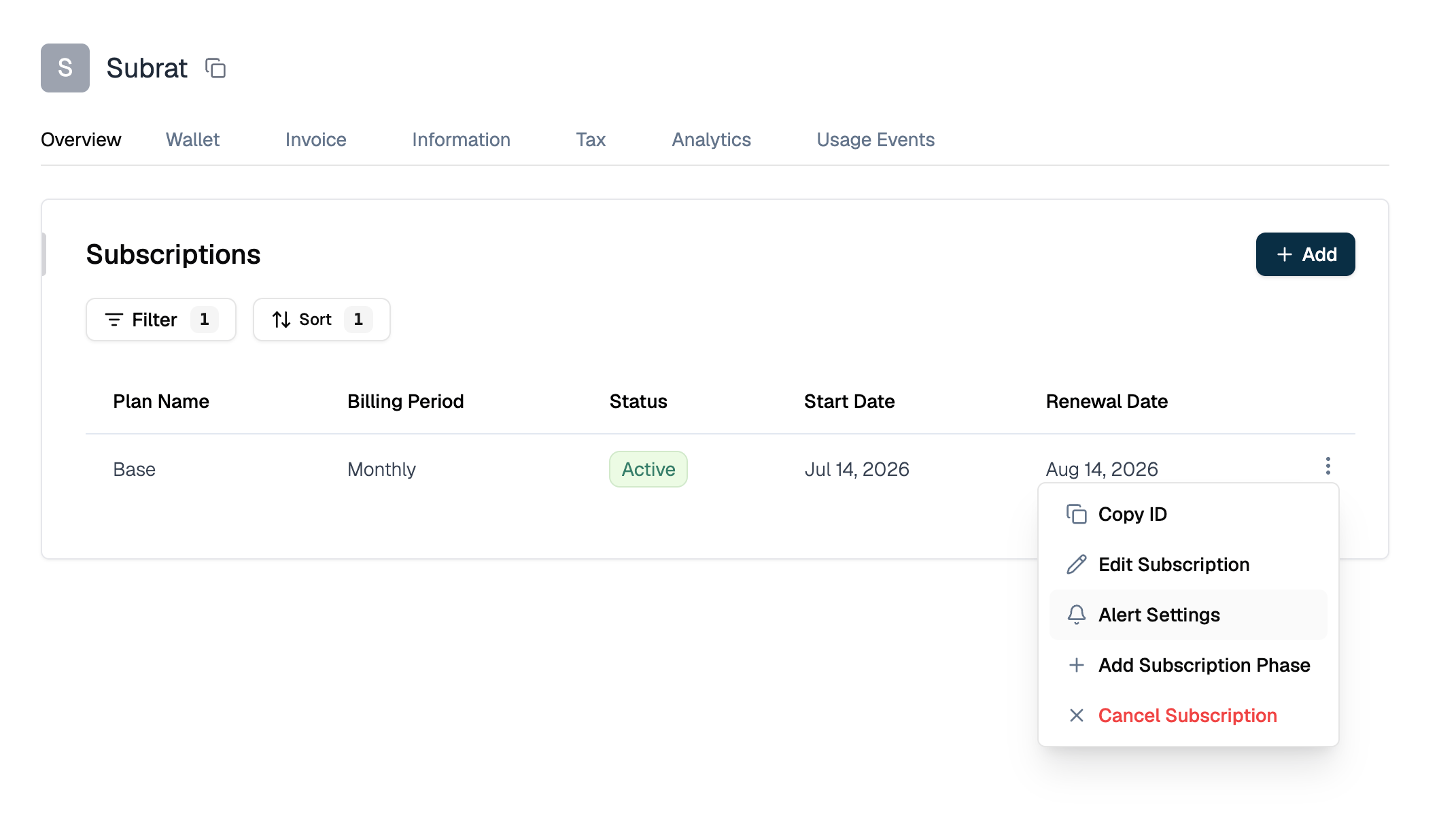
3
Enable alerts
Turn Enable Alerts on.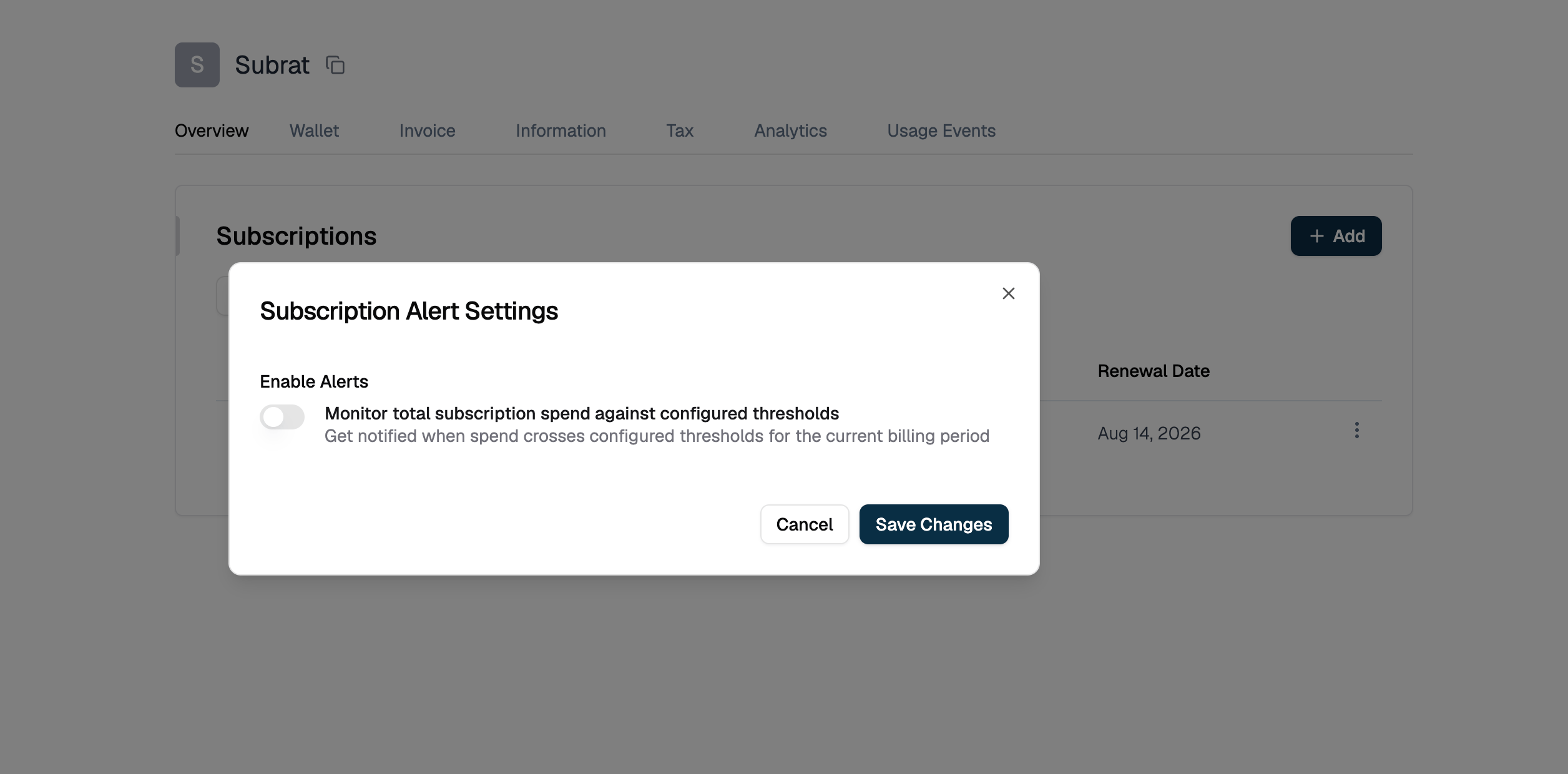
4
Configure thresholds
Set Threshold Value for the levels you want (Critical, Warning, Info). Condition is fixed to Above. Use Remove to drop a level you don’t need, then click Save Changes.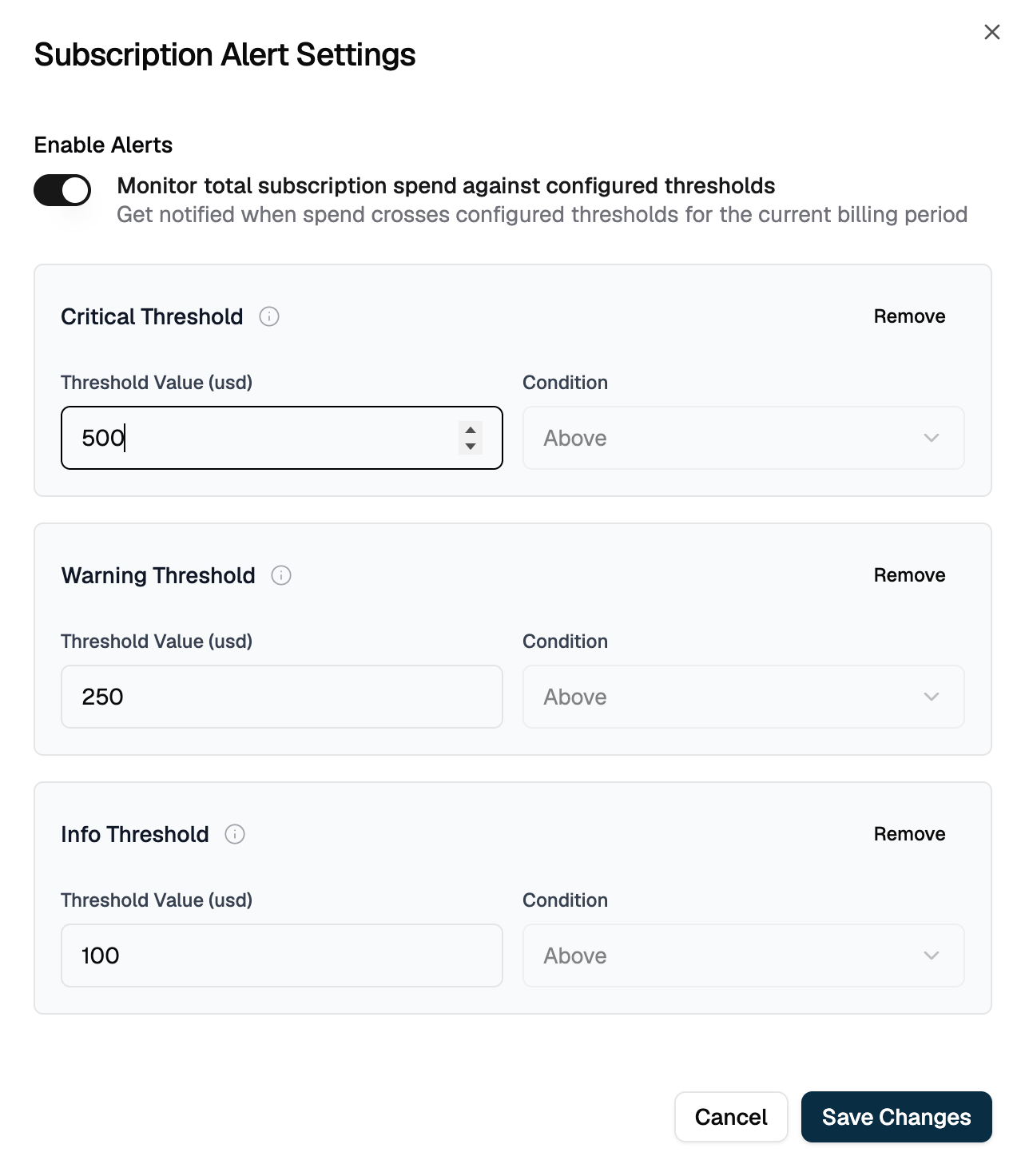
Configuring via API
No
parent_entity_type or parent_entity_id is sent for subscription-level alerts. entity_id is the subscription itself.Alert Behavior
Once configured and enabled, Flexprice:- Recalculates spend: On every usage event for the subscription, recomputes total usage-based spend using the same invoicing-grade calculation (commitment- and overage-aware) used to generate invoices
- Compares against thresholds: Evaluates the recalculated total against Critical, Warning, and Info
- Updates state: Reflects the current state (
ok,info,warning,in_alarm) in alert history - Notifies: Sends a webhook only when the state changes, not on every event
Managing Alert Settings
Viewing current configuration
1
Open the subscription
Open the subscription and click the three-dot menu (⋮).
2
Open Alert Settings
Select Alert Settings. The dialog shows Enable Alerts and all configured threshold levels with their values.
Changing thresholds
1
Open Alert Settings
Click the three-dot menu (⋮) on the subscription and select Alert Settings.
2
Adjust values
Change Enable Alerts or any threshold value in the dialog.
3
Save
Click Save Changes.
Removing a threshold
1
Open Alert Settings
Click the three-dot menu (⋮) on the subscription and select Alert Settings.
2
Remove the level
Click Remove on the threshold level you want to drop.
3
Save
Click Save Changes. Removed thresholds are cleared, not just hidden, so send the complete remaining configuration.
Disabling alerts
1
Open Alert Settings
Click the three-dot menu (⋮) on the subscription and select Alert Settings.
2
Turn off Enable Alerts
Set Enable Alerts to off (or set
alert_enabled to false via API).3
Save
Click Save Changes.
Webhooks
Use Cases
- Overall budget cap: Alert when a customer’s total subscription spend approaches or exceeds a contracted limit
- Early warning for usage spikes: Set Info well below Critical to catch unexpected spend trends before they become a problem
- Account health monitoring: Route alerts to a support or account-management queue
Related
- What Are Spend Alerts?: all three alert scopes, shared validation, and the full API reference
- Line item spend alerts: monitor one line item instead of the whole subscription
- Group spend alerts: monitor spend across a feature group
- Webhooks: endpoint setup, payload signatures, and retry behavior