What is the Customer Portal?
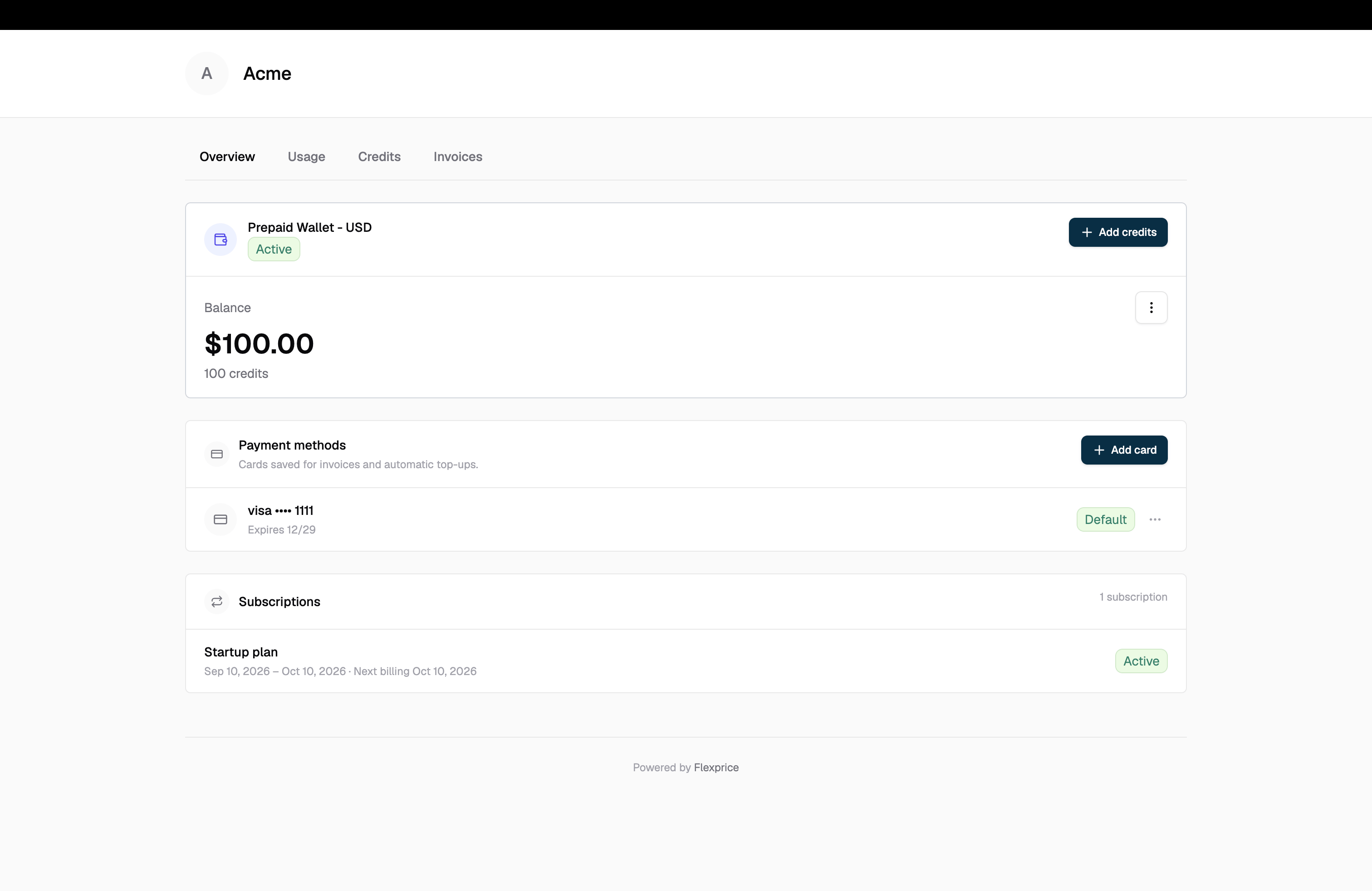
The Customer Portal empowers your customers to manage their account information independently. Through a secure, branded interface, customers can:- View account overview - See wallet balances, active subscriptions, and usage at a glance
- Track credits and transactions - Monitor prepaid wallet balances and transaction history
- Access invoices - View, search, and download invoices with payment status
- Analyze usage - Understand feature-level usage patterns and associated costs
Secure AccessThe portal uses secure session tokens that expire after 1 hour, ensuring customer data remains protected while providing convenient access.
Portal Overview
The Customer Portal is organized into four main sections, each accessible via tabs at the top of the interface:- Overview - Get a quick snapshot of your account: wallet balance, active subscriptions, and usage trends
- Credits - View detailed prepaid wallet information and complete transaction history
- Invoices - Browse, search, and download all invoices with payment status
- Usage - Analyze feature-level usage patterns and associated costs over time
Generating a Portal Session
To give a customer access to their portal, you need to generate a secure session token. This token authenticates the customer and provides temporary access to their portal. When to generate a session:- When a customer requests access to their billing information
- After customer onboarding to provide self-service access
- When redirecting customers from your application to the portal
- When a previous session token has expired
GET /v1/customers/portal/{external_id}
Authentication: Requires your Flexprice API key
Headers:
| Parameter | Type | Required | Description |
|---|---|---|---|
external_id | string | Yes | Customer’s external ID |
Example Request
Response
| Field | Type | Description |
|---|---|---|
token | string | JWT token for authenticating customer portal requests |
url | string | Pre-built URL with the token (optional, for convenience) |
expires_at | string | ISO 8601 timestamp when the token expires |
Session Tokens ExpirePortal session tokens typically expire after 1 hour. You’ll need to create a new session when the token expires.
url field in the response. This pre-built URL includes the token and will automatically authenticate the customer when they access it.
Accessing the Portal from the UI Dashboard
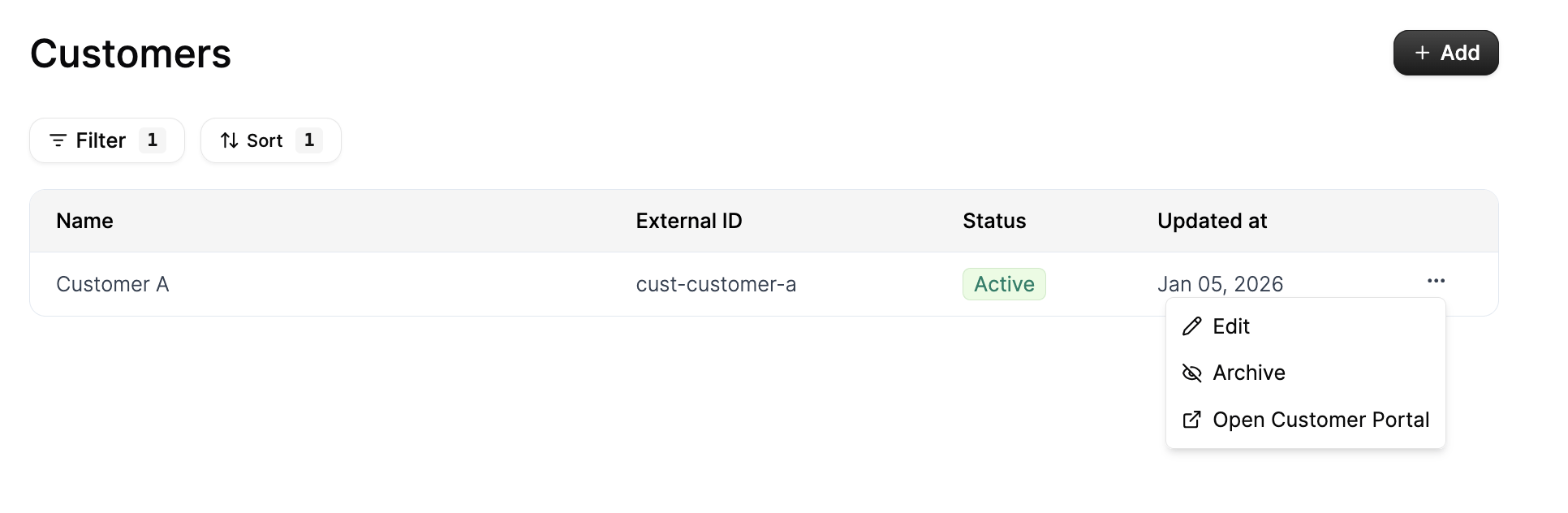
You can also access the customer portal directly from the Flexprice dashboard without making API calls. There are two ways to open a customer’s portal from the UI:From the Customers Page
- Navigate to the Customers page in your dashboard
- Find the customer in the table
- Click the three-dot menu (⋮) at the end of the customer’s row
- Select “Open Customer Portal” from the dropdown menu

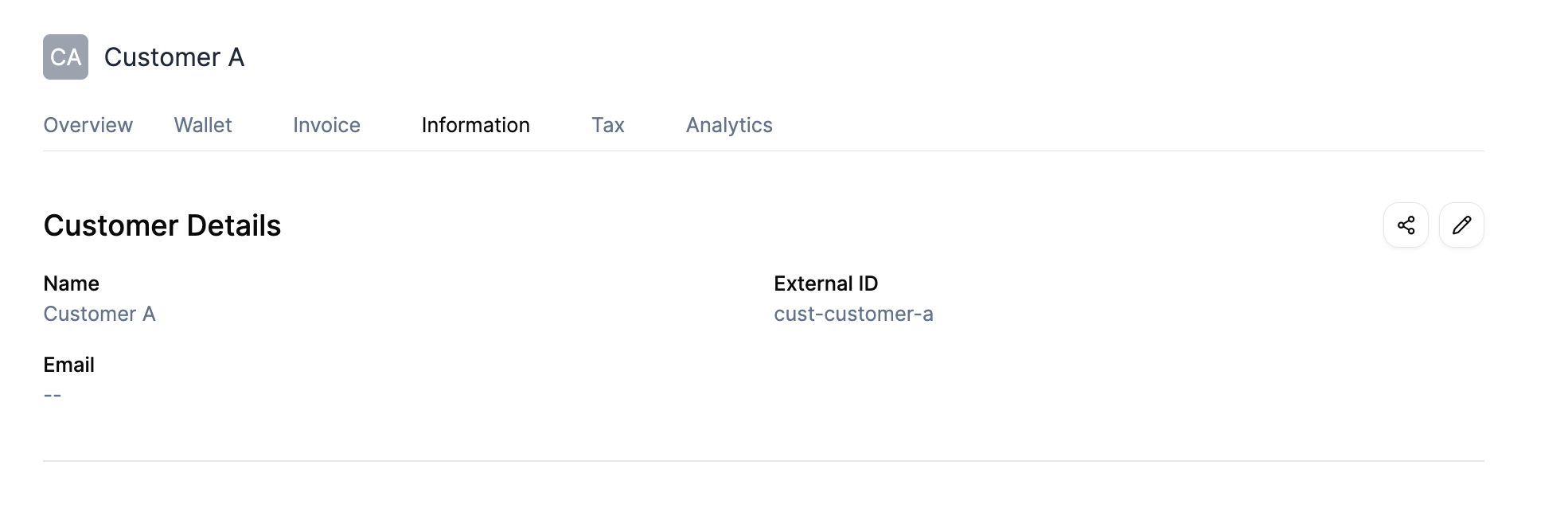
From the Customer Details Page
- Navigate to the Customers page
- Click on a customer to open their details page
- Go to the “Information” tab (or any tab in the customer details view)
- In the Customer Details section, you’ll find options to:
- Copy the portal link - Click the share icon to copy the portal URL to your clipboard
- Open the portal directly - The portal link can be shared with the customer or opened directly

- Quick access - No need to write code or make API calls
- One-click opening - Instantly generate and open portal sessions
- Easy sharing - Copy portal links to share with customers via email or other channels
- Automatic session management - The UI handles token generation and expiration automatically
Using the Portal Token
Once you have the session token, you can redirect your customer to the portal URL provided in the response. The portal handles authentication automatically using the token embedded in the URL.Redirecting Customers
The simplest approach is to use theurl field from the session response, which includes the token as a query parameter:
Embedding the Portal
You can also embed the portal in an iframe within your application:Handling Token Expiration
Since portal tokens expire after 1 hour, you should:- Generate tokens on-demand - Create a new session when the customer requests portal access
- Handle expiration gracefully - If a customer’s session expires, generate a new token and redirect them again
- Monitor token lifetime - Use the
expires_atfield to track when tokens will expire
Direct API Access
If you’re building a custom portal interface, you can use the session token directly in API requests. Include the token in theX-Session-Token header:
- Customer profile information
- Active and past subscriptions
- Invoices and payment history
- Wallet balances and transactions
- Usage analytics and cost data
Overview Tab
The Overview tab provides a comprehensive snapshot of your account at a glance. This is the default view when customers first access the portal.
Prepaid Wallet
The Prepaid Wallet section displays your current credit balance in two formats:- Credits - The raw credit amount (e.g., “434.2 credits”)
- Dollar Value - The monetary equivalent of your credits (e.g., “$43.42 value”)
Subscriptions
The Subscriptions section shows your active subscription plan:- Plan Name - The name of your current subscription plan (e.g., “Plan Base”)
- Status - Current subscription status, typically “Active” for active subscriptions
- Subscription Period - The current billing period with start and end dates (e.g., “Jan 6, 2026 - Feb 6, 2026”)
- Next Billing - The date when your next billing cycle begins
Usage Graph
The Usage section includes an interactive graph showing your usage trends over time:- Time Range Selector - Choose between 1 day (1d), 7 days (7d), or 30 days (30d) views
- Usage Visualization - A line graph showing usage patterns over the selected time period
- Y-Axis - Represents usage quantity (e.g., 0 to 6,000 units)
- X-Axis - Represents time (dates)
Credits Tab
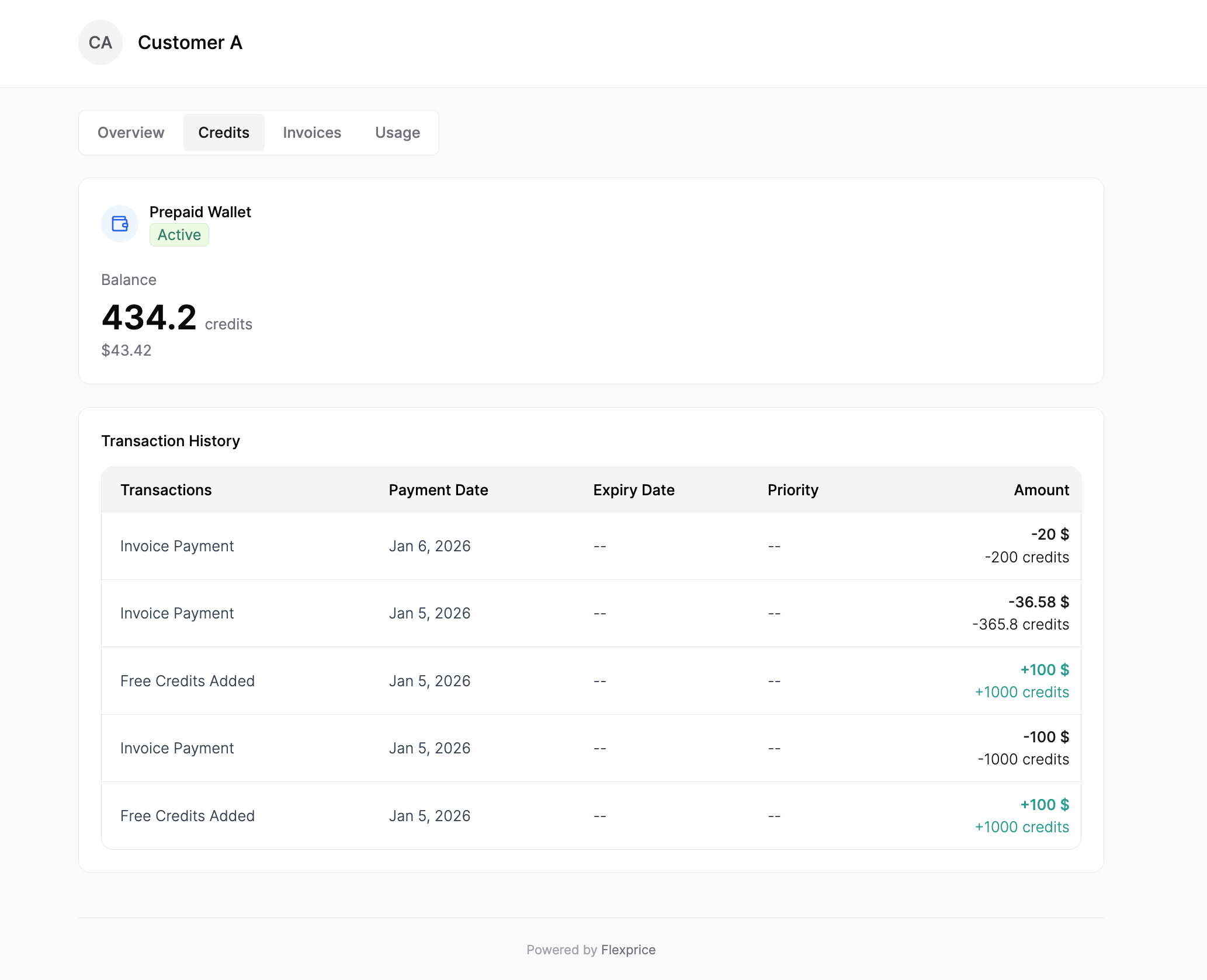
The Credits tab provides detailed information about your prepaid wallet, including balance details and complete transaction history.
Prepaid Wallet Details
At the top of the Credits tab, you’ll see your Prepaid Wallet summary:- Balance - Your current credit balance displayed prominently
- Status - Wallet status indicator (typically “Active” for active wallets)
- Dollar Value - The monetary equivalent of your credits
Transaction History
The Transaction History table provides a complete record of all credit-related transactions:| Column | Description |
|---|---|
| Transactions | Type of transaction (e.g., “Invoice Payment”, “Free Credits Added”) |
| Payment Date | When the transaction occurred |
| Expiry Date | When credits expire (if applicable) |
| Priority | Transaction priority level |
| Amount | Transaction amount in both dollars and credits |
- Invoice Payment - Credits deducted when paying invoices (shown as negative amounts, e.g., “-20 $ / -200 credits”)
- Free Credits Added - Credits added to your account (shown as positive amounts, e.g., “+100 $ / +1000 credits”)
Invoices Tab
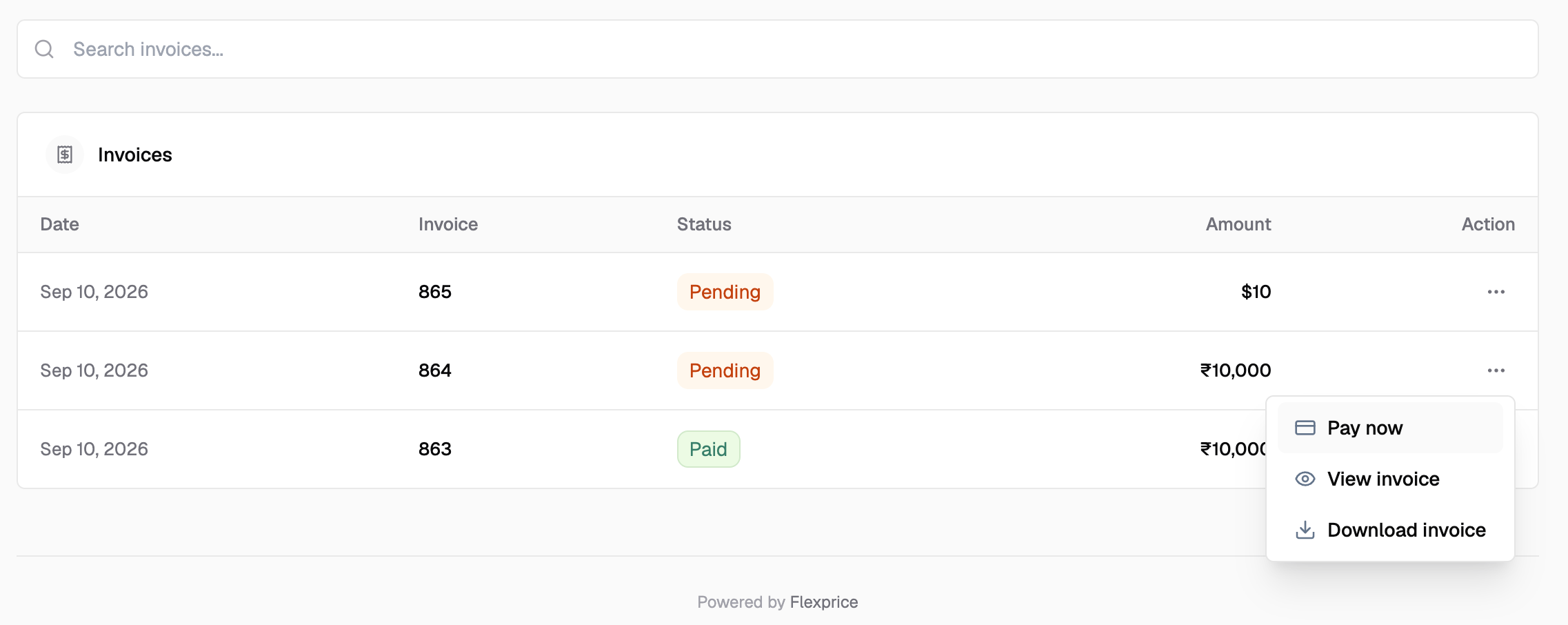
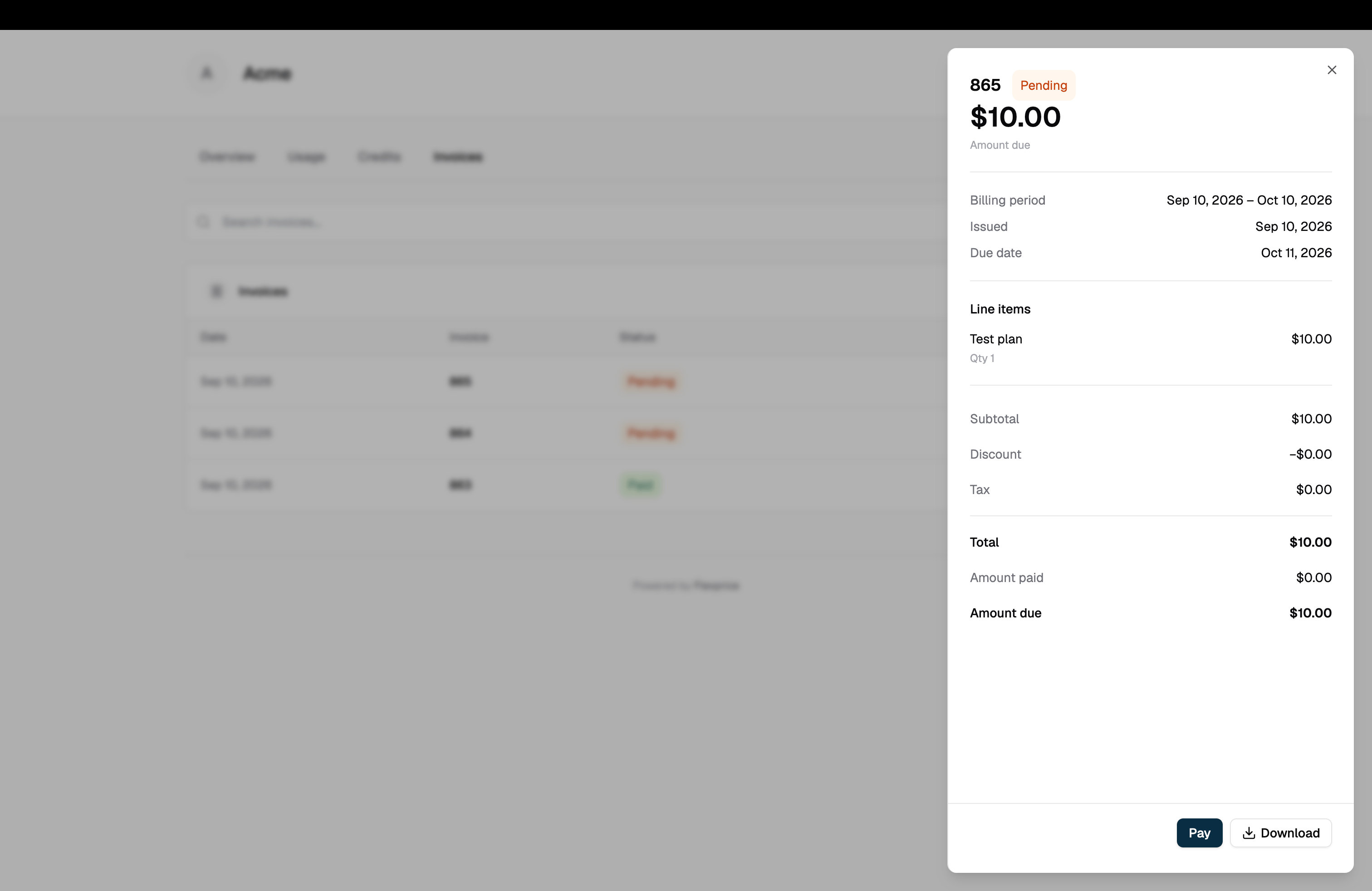
The Invoices tab allows you to view, search, and download all your invoices with their payment status.
Invoice Table
The invoice table displays all your invoices with the following information:| Column | Description |
|---|---|
| DATE | The date the invoice was issued |
| INVOICE # | Unique invoice identification number (e.g., “INV-202601-00003”) |
| STATUS | Payment status of the invoice |
| AMOUNT | Total invoice amount |
| DOWNLOAD | Icon to download the invoice PDF |
Invoice Status
Invoices display their payment status with color-coded indicators:- Paid (Green) - Invoice has been successfully paid
- Pending (Orange) - Invoice is awaiting payment
Search Functionality
Use the search bar at the top to quickly find specific invoices. You can search by:- Invoice number
- Date range
- Amount
- Status
Downloading Invoices
Click the download icon in the DOWNLOAD column to save a PDF copy of any invoice. This is useful for:- Record keeping
- Accounting purposes
- Dispute resolution
- Tax documentation
Usage Tab
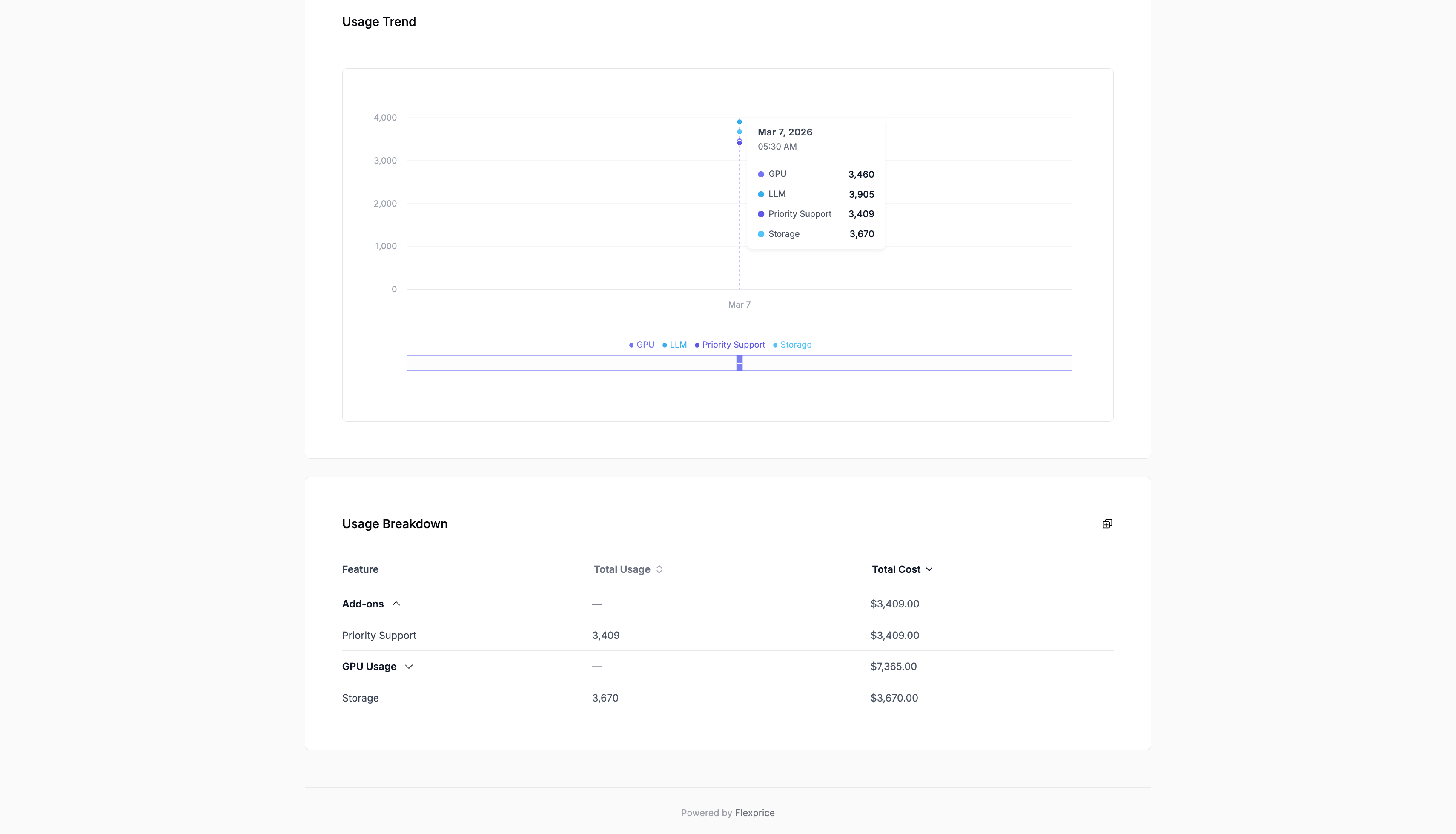
The Usage tab provides detailed analytics about your feature-level usage and associated costs. When features are assigned to groups,Usage Breakdown show data by group (e.g. GPU Usage, Add-ons).

Usage Graph
The interactive usage graph visualizes your usage patterns over time:- Time Range Selector - Choose between 1 day (1d), 7 days (7d), or 30 days (30d) views
- Feature-Level Tracking - Each feature is represented by a different color on the graph
- Interactive Tooltips - Hover over data points to see detailed information:
- Exact date and time
- Feature name
- Usage quantity at that point
- Identify usage spikes and patterns
- Compare usage across different time periods
- Understand when peak usage occurs
- Track usage trends over time
Usage Breakdown Table
Below the graph, the Usage Breakdown table provides feature-level usage statistics:| Column | Description |
|---|---|
| Feature | The name of the feature being tracked (e.g., “Feature B”) |
| Total Usage | Total usage quantity with unit (e.g., “5,911 calls”) |
| Events | Number of usage events recorded |
| Total Cost | Total cost associated with this feature’s usage (e.g., “$141.86”) |
- Understand which features consume the most resources
- Calculate cost per feature
- Identify optimization opportunities
- Track usage efficiency
- Total Usage shows the cumulative usage quantity for the selected time period
- Events indicates how many individual usage events contributed to the total
- Total Cost represents the billing amount for this feature’s usage, helping you understand the financial impact
Understanding Your Data
This section helps you interpret the information displayed throughout the portal.Wallet Balances
Your prepaid wallet balance represents credits available for billing. When you use services, credits are deducted from this balance. The dollar value shows the monetary equivalent, helping you understand the real-world value of your credits. Key points:- Credits are deducted when invoices are paid or services are used
- Free credits and top-ups increase your balance
- Monitor your balance to ensure sufficient credits for continued service
Subscription Status
Your subscription status indicates the current state of your plan:- Active - Your subscription is active and billing will continue as scheduled
- The subscription period shows your current billing cycle
- Next billing date indicates when your next charge will occur
Usage Graphs
Usage graphs help you visualize consumption patterns:- Spikes indicate periods of high usage
- Trends show whether usage is increasing, decreasing, or stable
- Time range selection lets you zoom in on recent activity or view longer-term patterns
- Feature colors help distinguish between different features on the same graph
Cost Tracking
Understanding costs helps you manage your budget:- Total Cost in the Usage Breakdown shows billing for each feature
- Invoice amounts show what you’ve been charged
- Transaction history shows credit deductions and additions
- Compare usage to costs to understand your cost per unit of usage
Portal Features
The Customer Portal provides self-service access to your billing information, but it has specific capabilities and limitations.What You Can Do
- View account information - See your customer profile, subscriptions, and account details
- Monitor wallet balances - Track prepaid credits and transaction history
- Access invoices - View, search, and download all invoices
- Analyze usage - Review feature-level usage patterns and costs
- Track subscriptions - Monitor active subscriptions and billing cycles
Limitations
The portal provides read-only access. You cannot:- Modify subscription plans
- Update payment methods
- Change billing information
- Cancel subscriptions
- Make payments
When to Contact Support
Contact support when you need to:- Change your subscription plan
- Update payment methods or billing information
- Cancel or pause your subscription
- Resolve billing disputes
- Request refunds or credits
- Get help interpreting your usage data
- Report technical issues with the portal
Related Resources
Customers
Learn about customer management →
Subscriptions
Understand subscription management →
Invoices
Learn about invoice management →
Wallet
Understand prepaid wallets →
API Reference
View full API documentation →