

Manual Top-Up
Manual top-ups provide flexibility to add credits on demand. You can issue free credits for promotions and compensations, or process purchased credits through standard payment methods.Adding Credits Manually
1
Access the Wallet
Navigate to the customer’s wallet and click Top-up Wallet in the top right corner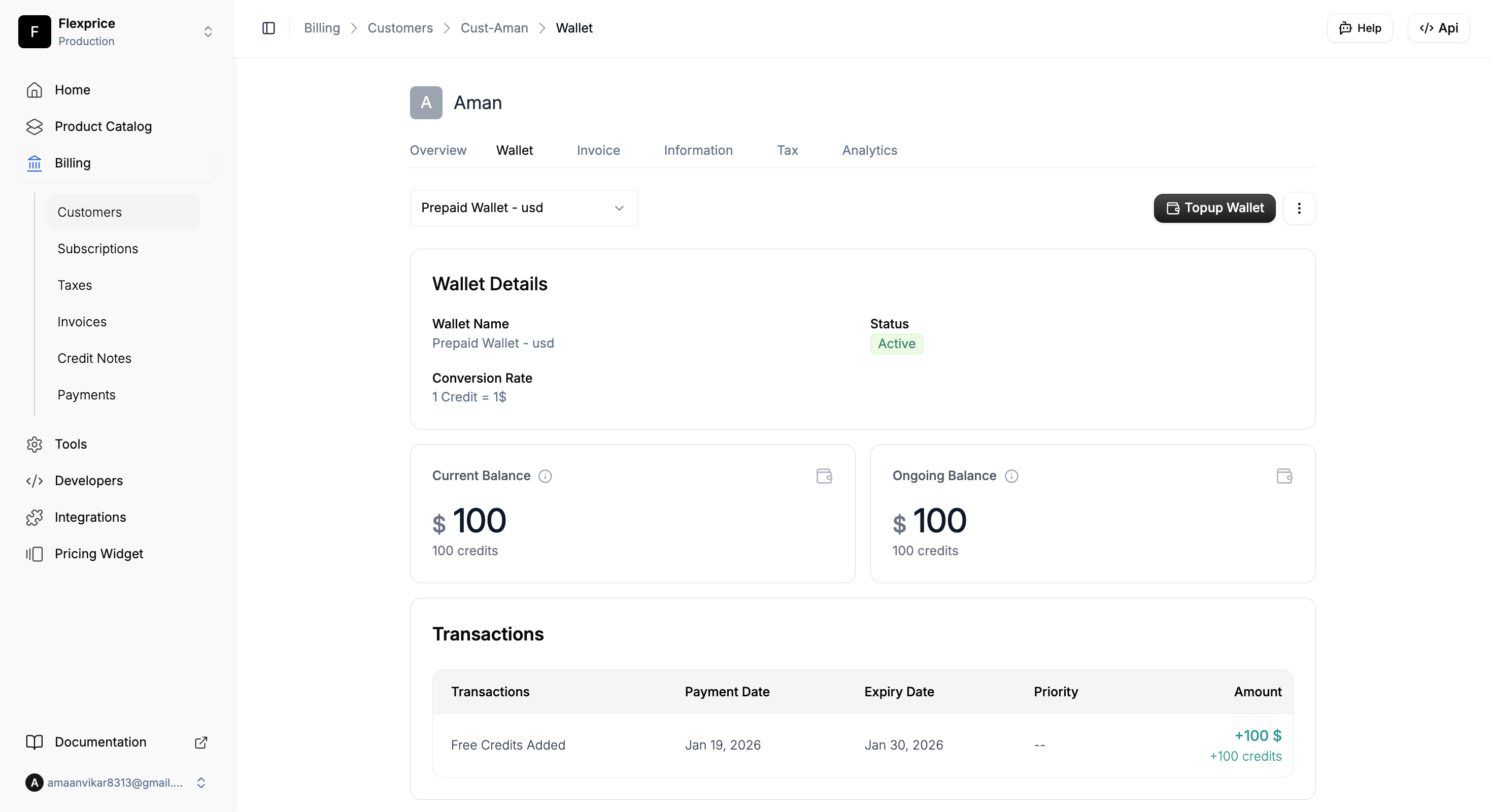
2
Configure Credit Amount
In the top-up dialog, select your credit type and enter the amount to add to the wallet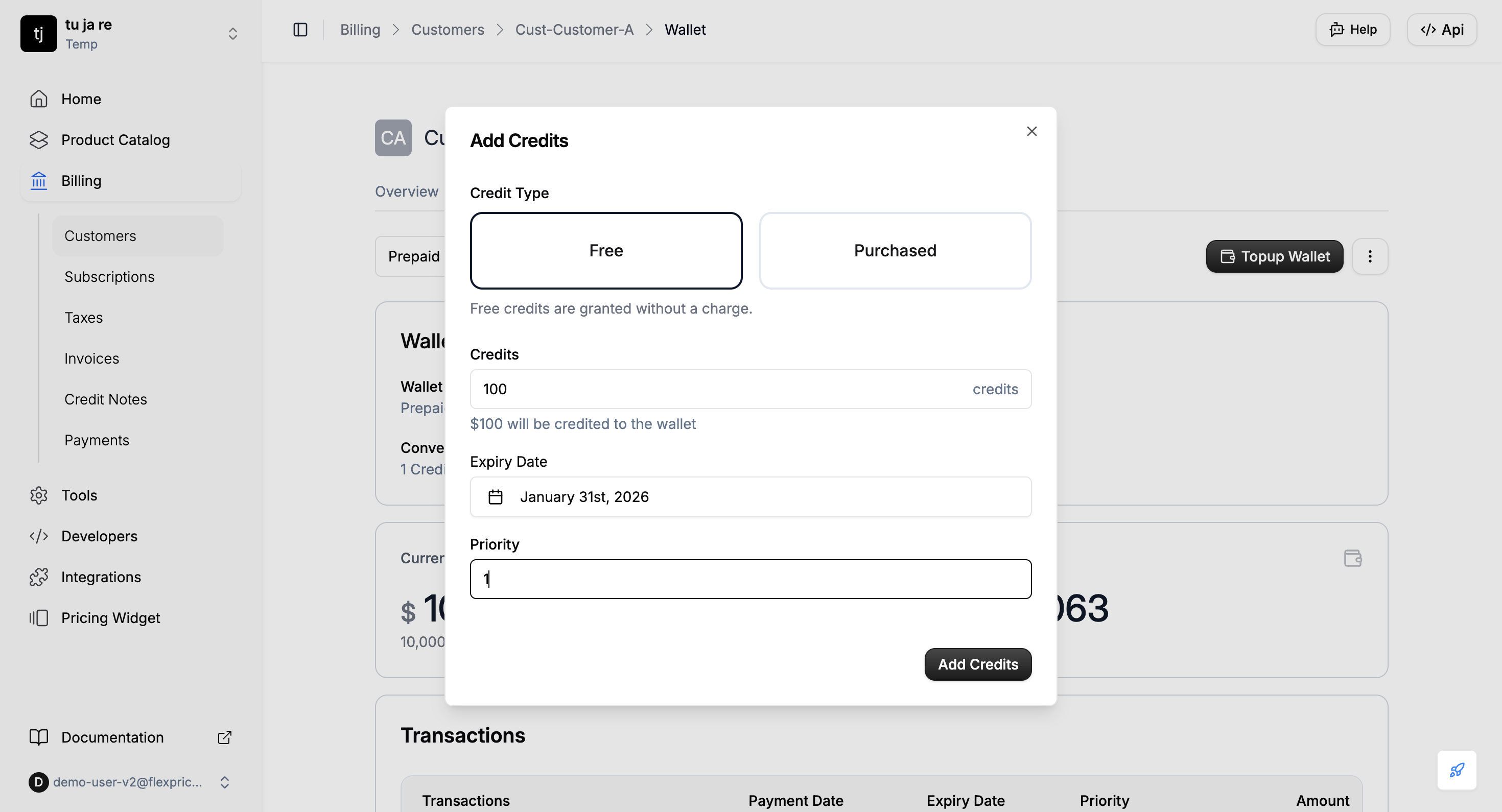
3
Confirm
Click Add Credits to complete the top-up
Automatic Top-Up
Automatic top-up ensures uninterrupted service by automatically recharging wallets when they fall below a specified threshold. This eliminates manual monitoring and prevents service disruptions due to insufficient balance.Configuring Auto Top-Up
1
Enable Auto Top-Up
During wallet creation, toggle Recharge Wallet Automatically
2
Set Trigger Threshold
Define when auto top-up should activate (e.g., when balance falls below $100)
3
Configure Minimum Balance
Enter the minimum balance threshold that triggers automatic recharge
4
Define Top-Up Amount
Specify the amount to add when auto top-up is triggered (e.g., 500)
5
Save
Click Save changes to activate auto top-up
Credit Types Supported
Flexprice supports multiple credit types to accommodate different billing scenarios:Free Credits Top-Up
Promotional or complimentary credits added without requiring payment. Common use cases:- Welcome bonuses for new customers
- Promotional campaigns and special offers
- Service credits for issue resolution
- Customer loyalty and retention programs
Purchased Credits Top-Up
Purchased credit top-up refers to credits that a customer buys. We support two types:- Purchased Credits - Immediate credit addition
- Purchased Credits (With Invoice) - Invoice-based top-up with payment tracking
Purchased Credit Top-Up (with Invoice)
The invoice-based top-up workflow provides comprehensive payment tracking and record-keeping for credit purchases.How It Works
When you select Purchased Credits and enable Generate Invoice, Flexprice initiates the following flow:1
Top-Up Initiated
You select Purchased Credits and enable Generate Invoice in the top-up dialog, then click Add Credits
2
Invoice Created
An invoice is automatically generated and finalized with payment status
Pending. The invoice contains the credit purchase details and is visible in your invoice list3
Transaction Logged
A wallet transaction is created with status 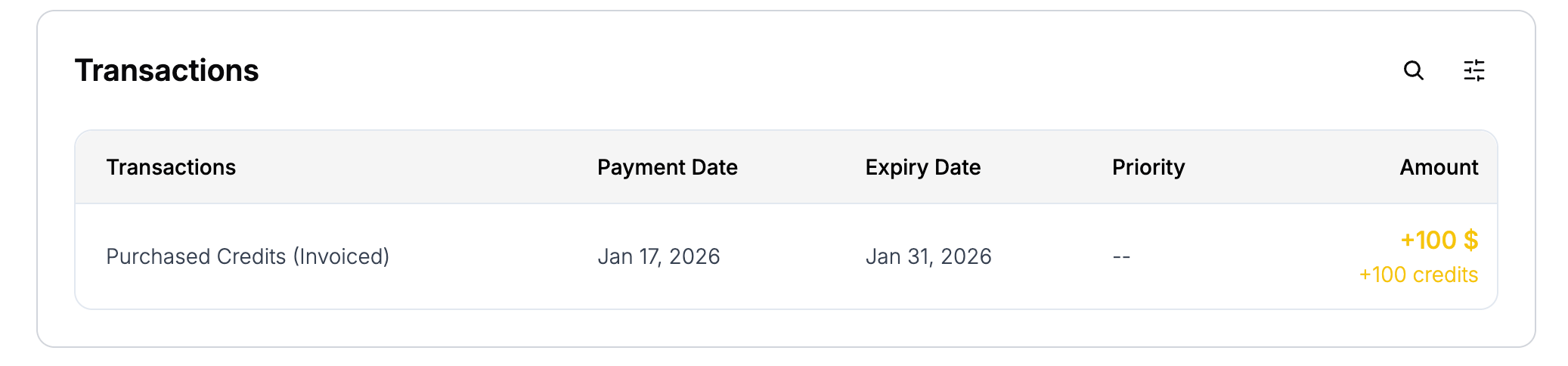
pending and transaction reason PURCHASED_CREDIT_INVOICED. The transaction is linked to the generated invoice4
Credits Hold
Credits remain unavailable and are not added to the wallet balance. The wallet balance remains unchanged until payment is confirmed
5
Record Payment
Credits get available only after the payment is followed through. When the invoice payment status becomes 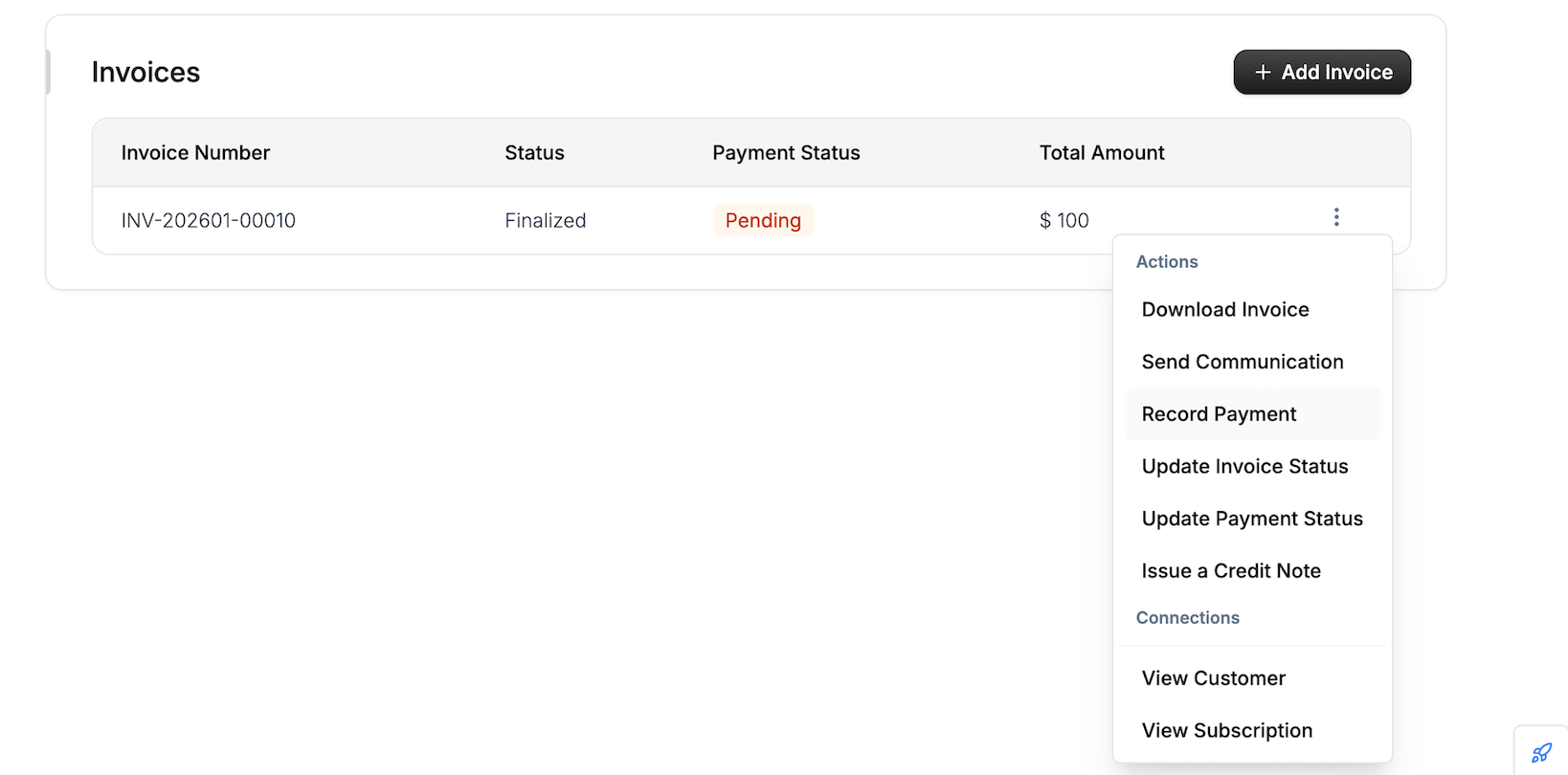
Succeeded, the wallet balance gets topped-up.Record Payment or Update Payment Status directly to confirm payment.- Record Payment - A payment record is created for the invoice supporting tracking and reconciliation. Payment can be recorded through following methods:
- Offline Payment - Record payment that was processed outside the system.
- Payment Link - Generate a payment link for online payment. Payment status gets updated when payment is successfully processed through the payment gateway. If you want to know more about the
payment_linkbehavior, check out Stripe Payment Link & Checkout for configuration instructions.
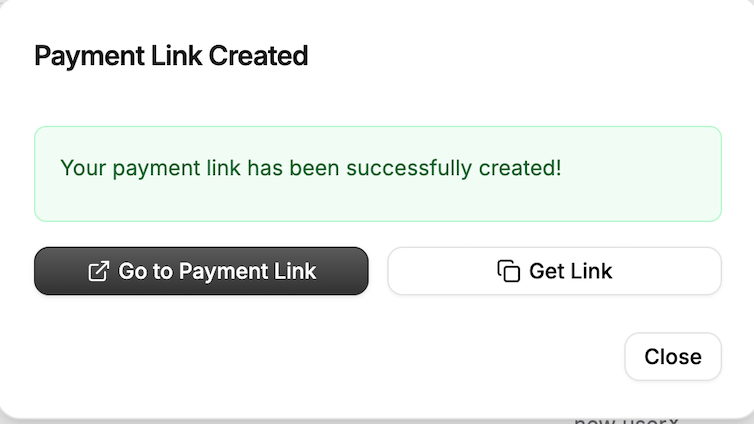
- Update Payment Status - Invoice payment status changes from
PendingtoSUCCEEDEDfor API responses) After the payment is completed, the invoice status is updated to confirm successful payment.
6
Credits Available
Once payment is confirmed and the invoice is marked as paid: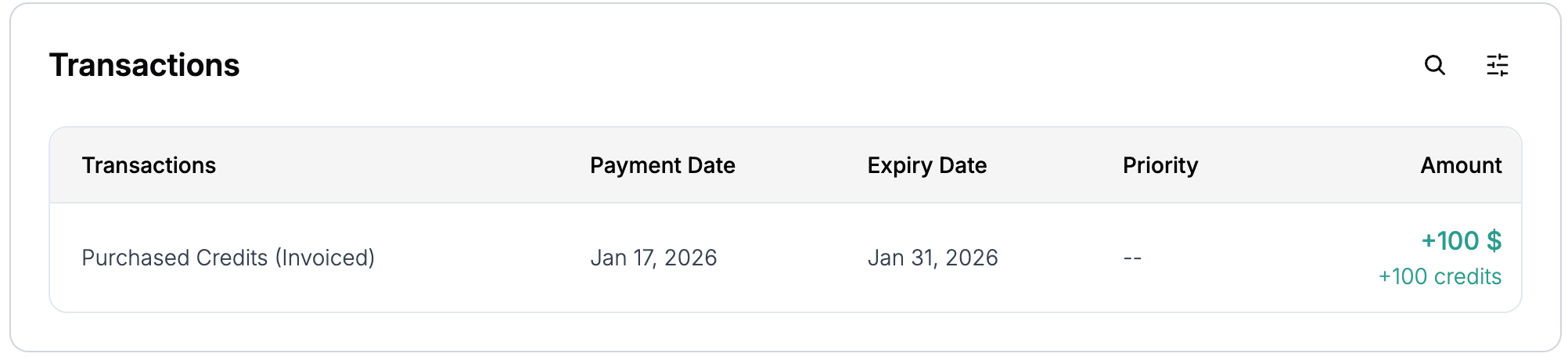
- Transaction status changes from
pendingtocompleted - Credits are immediately added to the customer’s wallet
- Wallet balance is updated and credits become available for use
Credit Activation
Once payment is recorded and the invoice is marked as paid:- Credits are immediately added to the customer’s wallet
- Transaction status updates to
completedin wallet history - Credits become available for immediate use
When to Use Invoice-Based Top-Ups
Financial Record Keeping- Maintain detailed audit trails for all credit purchases
- Separate wallet top-up revenue from service charges
- Generate comprehensive transaction histories for accounting
- Support purchase order and approval processes
- Enable invoice-based payment for corporate customers
- Provide formal documentation for business expense tracking
- Meet regulatory requirements with detailed financial records
- Generate reports for credit purchase analysis
- Track customer acquisition and spending patterns
Collect Payment Before Credits Apply
The flow above finalizes an invoice and waits for you to record payment. If you would rather hand the customer a payment page and let a successful payment release the credits, add acheckout object to the top-up request:
DRAFT invoice, then returns a payment link:
checkout_session.payment_action.url. When the payment succeeds, the invoice is finalized, the transaction moves to completed, and the 500 credits land in the wallet.
checkout and the manual Record Payment flow are alternatives, not steps in sequence. Use checkout when you want the customer to pay through a hosted page; use the invoice flow when you settle payment yourself or out of band.Bonus Credits on Top-Up
Purchased credit top-ups (PURCHASED_CREDIT_DIRECT and PURCHASED_CREDIT_INVOICED, including pay-first checkout) can grant an extra bonus credit alongside the purchase. Free credit top-ups never receive a bonus.
The bonus is resolved automatically from a slab table, or set directly on the request.
flat: a fixed number of bonus credits, regardless of purchase sizepercentage: a percentage of the credits being purchased
Automatic Slab-Based Bonus
Configure the Bonus Credits Topup Configuration setting with a table of slabs, each mapping a purchase threshold to a bonus:credits_to_add against the slabs and grants the bonus from the first one it clears:
- A top-up of
250credits clears the200threshold first and gets a 10% bonus (25bonus credits) - A top-up of
150credits does not clear200but clears100, and gets a flat 50 bonus credits - A top-up of
50credits does not clear any threshold and gets no bonus
Slabs are evaluated in list order and the first match wins, so
slabs must be sorted descending by threshold. Only the gte operator is supported.Manual Override
To grant a specific bonus instead of resolving it from slabs, setbonus_credits_to_add on the top-up request.
Setting
bonus_credits_to_add grants that amount as-is and skips slab resolution entirely for that top-up. When the field isn’t set, Flexprice resolves the bonus from the slab table instead, and if no slab matches, no bonus is granted.Bonus Credit Expiry
Bonus credits can expire independently of the purchased credits they came with. Setbonus_credits_expiry_date_utc (an RFC3339 UTC timestamp) on the request to expire the bonus at a specific time; it’s rejected if it’s in the past, and only takes effect when a bonus is actually granted.
If the request doesn’t set
bonus_credits_expiry_date_utc, and the matched slab defines expiration_duration and expiration_duration_unit (DAY, WEEK, MONTH, or YEAR, both required together), the bonus expires that long after it’s granted instead. If neither is set, the bonus credits don’t expire.How the Bonus Is Recorded
The bonus is not merged into the purchase. It is created as its own wallet transaction:transaction_reason:PURCHASED_CREDIT_BONUSparent_transaction_id: the ID of the purchase transaction it’s linked totransaction_status: mirrors the purchase transaction’s status. For a direct top-up both complete immediately; for an invoiced or pay-first top-up, the bonus stayspendinguntil the purchase transaction completes, then both complete together
The top-up wallet response only returns the purchase transaction in
wallet_transaction. Bonus credits do not appear there. Look up wallet transactions filtered by parent_transaction_id or transaction_reason: "PURCHASED_CREDIT_BONUS" to see the bonus. Once both transactions complete, wallet.balance reflects the purchase and the bonus together.Related Documentation
- Wallet Transactions - Monitor and manage all wallet transactions
- Auto Top-Up Wallet - Configure automatic wallet recharging
- Low Balance Alert - Set up balance threshold notifications
- Pay-First Checkout - Gate a top-up behind a successful payment
- Settings - Configure automatic bonus credit slabs
- Top-Up Wallet API Reference - Full request and response schema