

- Proactive management: Get notified at Info and Warning levels before balance reaches critical
- Granular control: Separate thresholds for informational, warning, and critical states
- Absolute or percentage: Set thresholds as a fixed amount or as a share of granted credits
- Per-wallet settings: Enable or disable alerts and configure thresholds per wallet
Threshold Types
Every threshold is read either as an Absolute amount or as a Percentage. The threshold type applies to all three levels together.Absolute Thresholds
Thresholds are fixed amounts denominated in the customer’s wallet currency. On a USD denominated wallet, a Critical threshold of10 triggers when the balance falls below $10.
Use Absolute when the threshold you care about is a specific fixed value, such as a minimum balance before service is interrupted or the level at which a top-up should be triggered. Negative values are allowed, so a post-paid wallet can alert on how far below zero it has gone.
Absolute is the default. A wallet or tenant configuration saved without a threshold type is read as Absolute.
Percentage Thresholds
Thresholds are specified as a percentage of the credits granted during the customer’s current billing period. A Critical threshold of10 triggers when the ongoing balance falls below 10% of the credits granted in that billing period. If the customer has no active subscription, the wallet’s total lifetime credits granted is used as the reference amount.
Use Percentage when the meaningful floor scales with the customer. 20% left means the same thing to a customer granted 500 credits and one granted 50,000, where a fixed amount would not.
Values must be between 0 and 100.
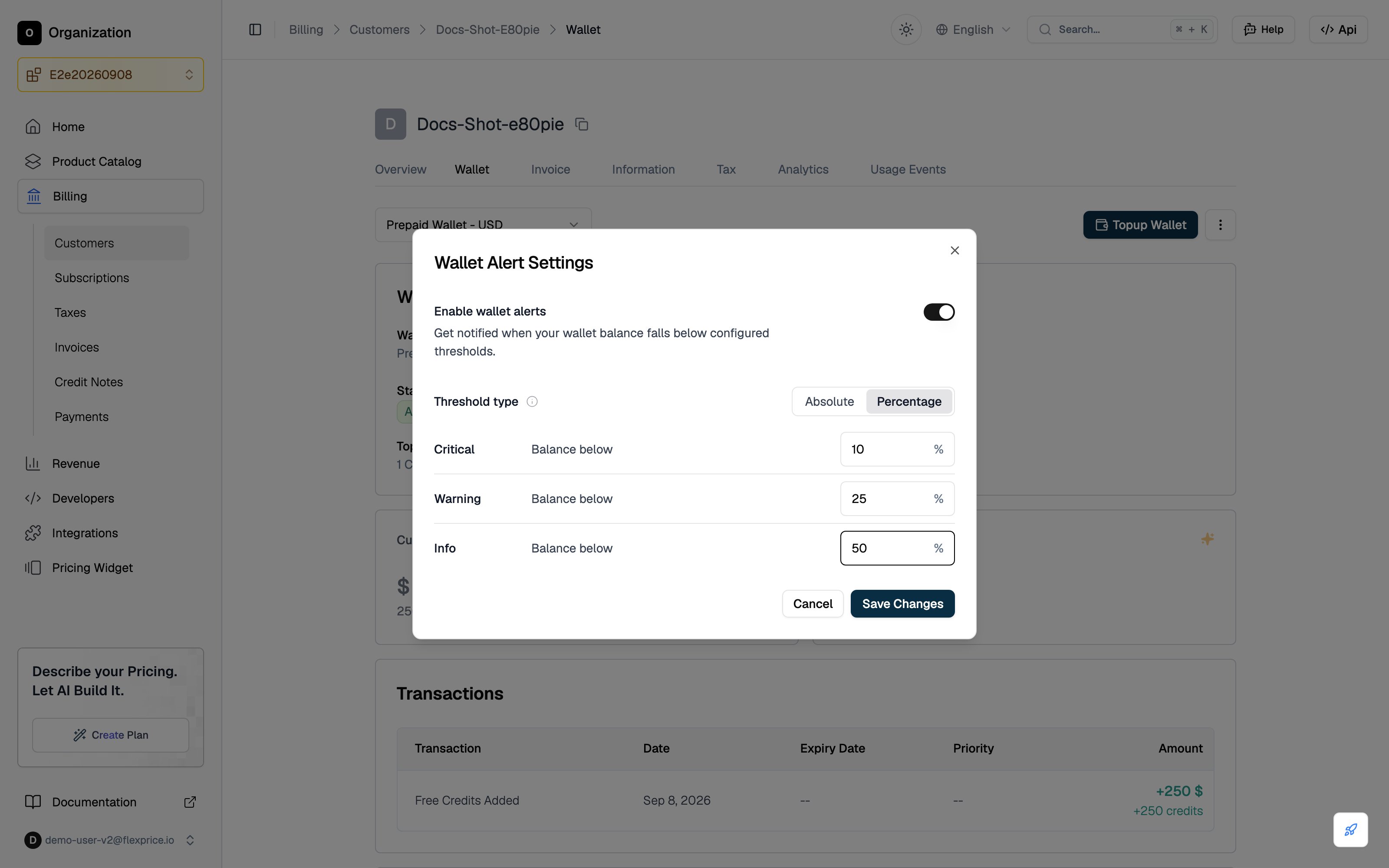
Percentage thresholds are calculated by expressing the ongoing balance as a percentage of the credits granted for the current billing period. The ongoing balance reflects the real-time balance after accounting for current usage.
Alert Levels
Each level takes a single threshold value, read according to the configured threshold type. An alert triggers when the balance falls below that value.
Configure only the levels you need, subject to two rules: a critical threshold is required when a warning threshold is set, and thresholds must ascend by severity, so critical is lower than warning and warning is lower than info.
Alerts are turned on or off for a wallet using Enable wallet alerts (
alert_enabled in the API).
Configuring Wallet Sentinel Alerts
1
Navigate to Customer Wallet
- Go to Billing in the main navigation
- Select Customers, then the desired customer
- Open the Wallet tab in the customer profile
2
Access Alert Settings
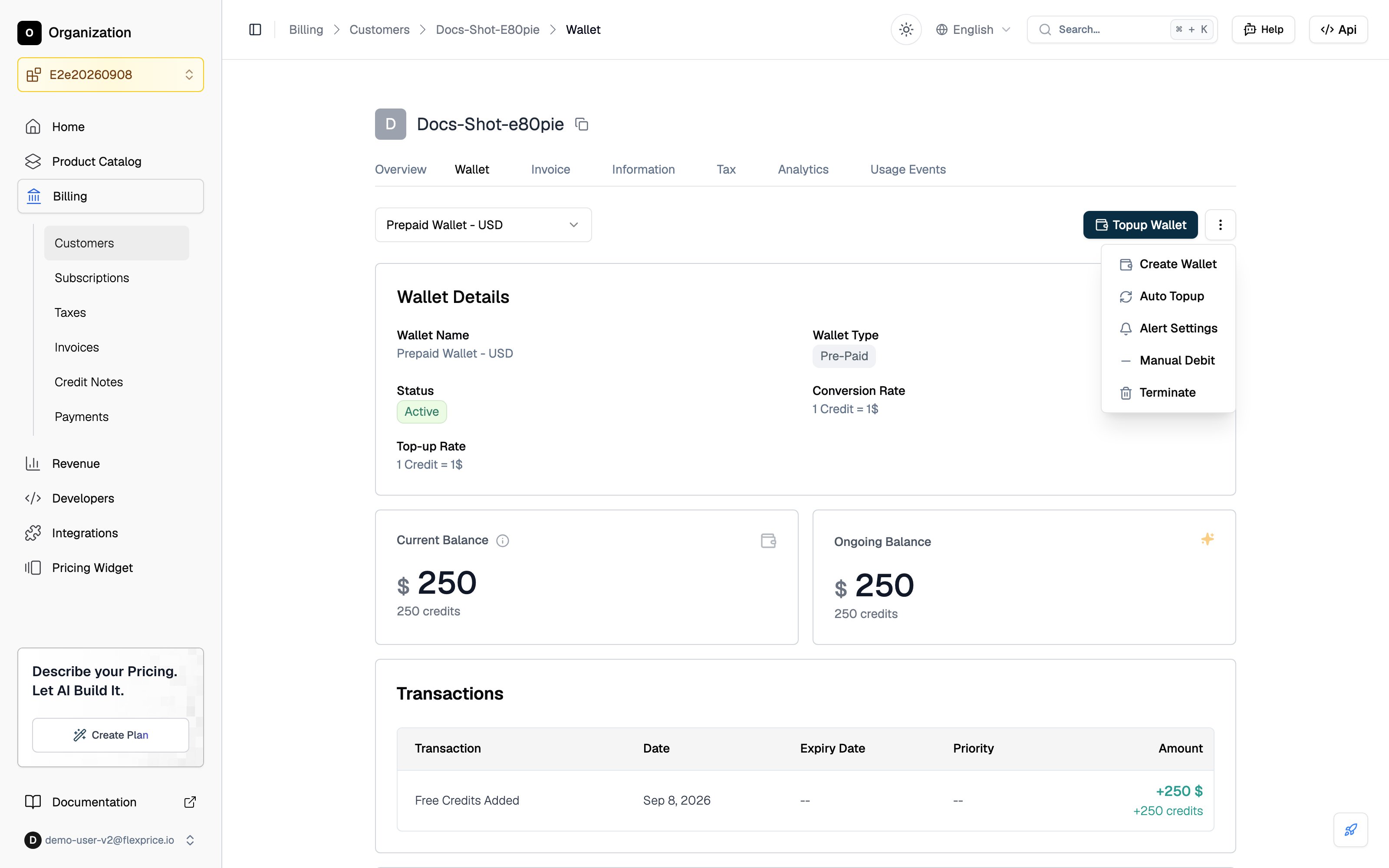
- Click the three-dot menu (⋮) in the top right corner of the wallet section
- Select Alert Settings from the dropdown
3
Enable Alerts
In the Wallet Alert Settings dialog, turn Enable wallet alerts on to activate monitoring against your configured thresholds.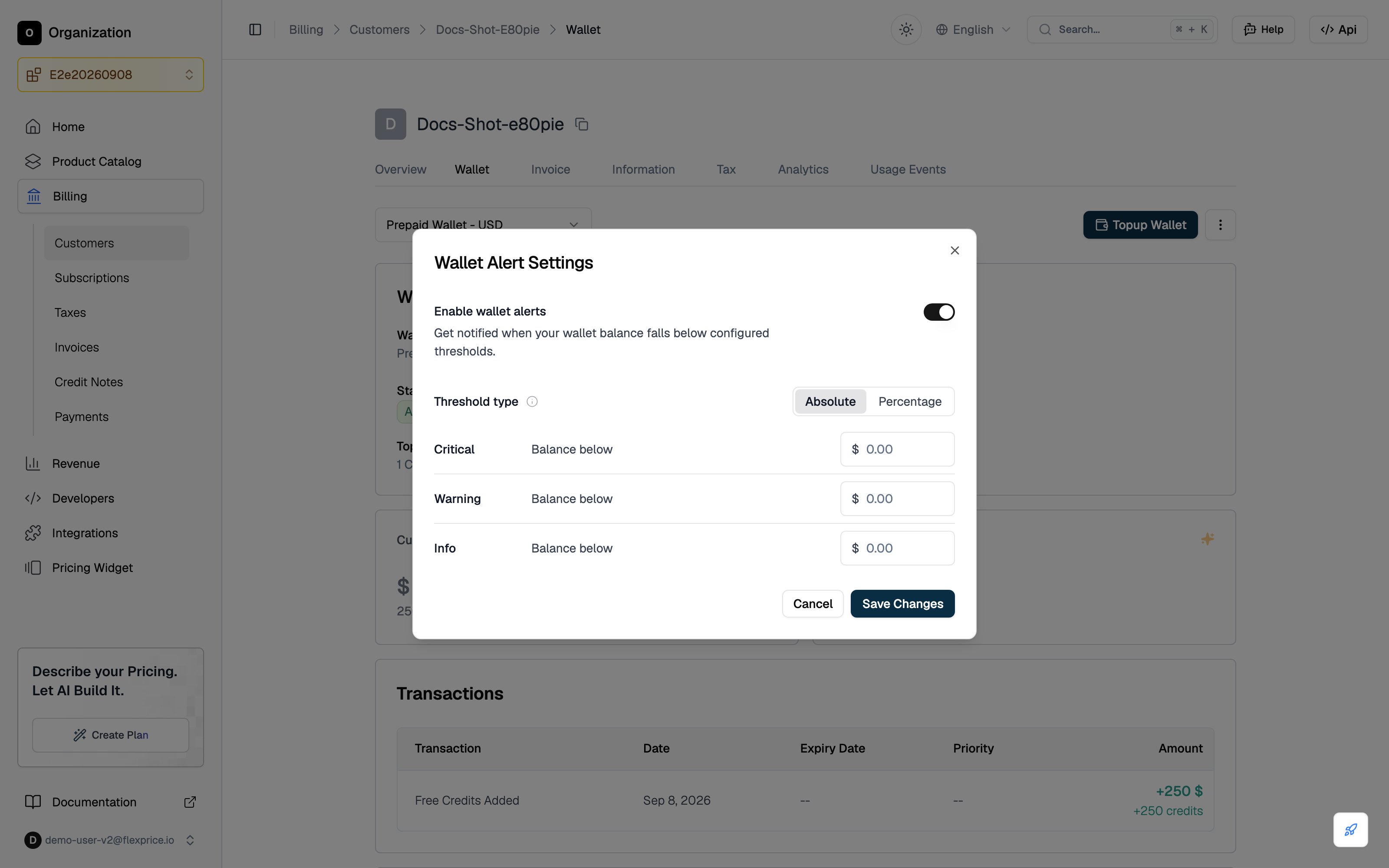
4
Configure Thresholds
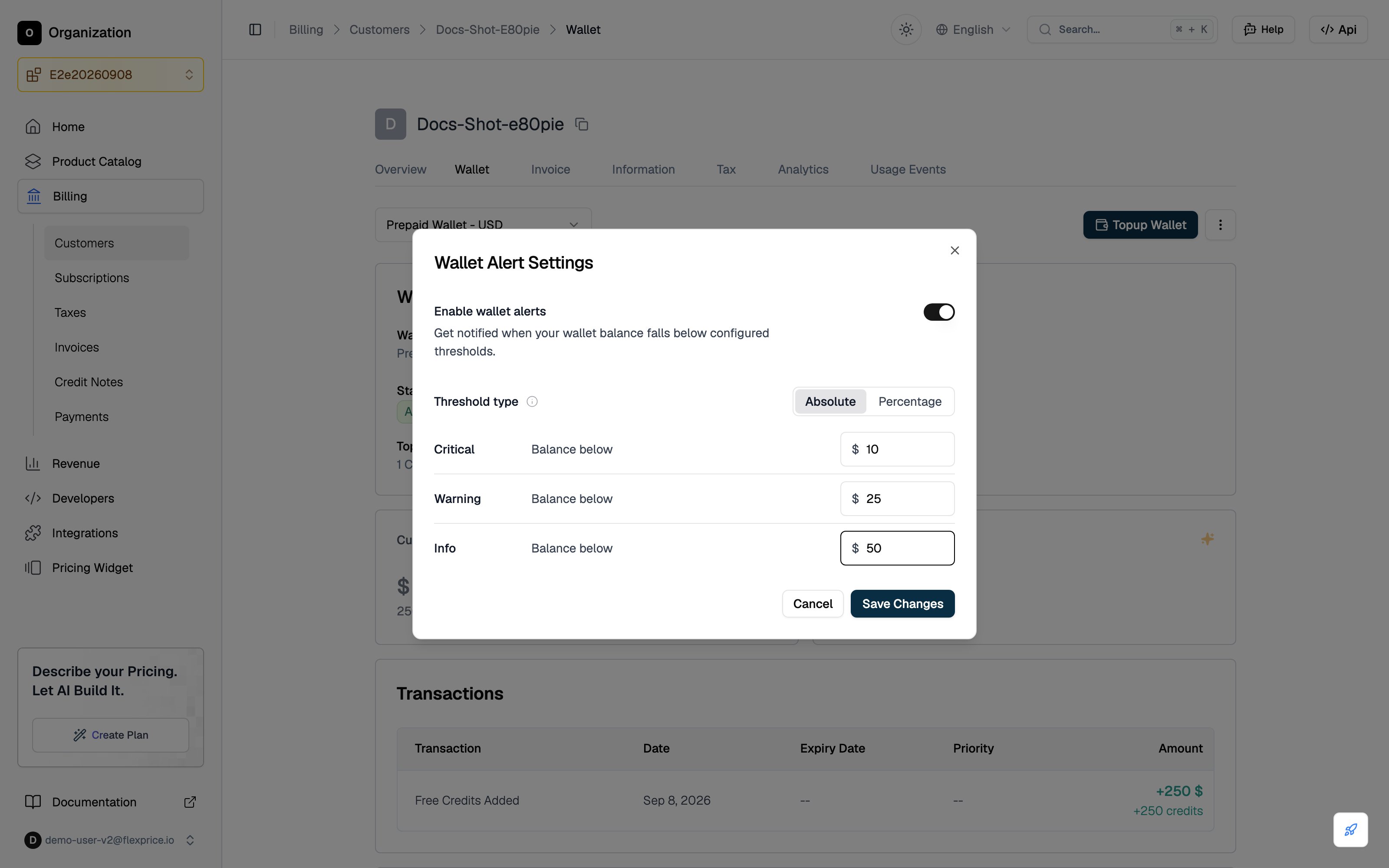
- Choose Absolute or Percentage under Threshold type.
- Set a value for the levels you want. Each level triggers when its threshold is breached.
- Click Save Changes to apply.
Alert Behavior
Once configured and enabled, the sentinel will:- Monitor balance: Evaluate wallet balance against your thresholds (e.g. after top-ups, debits, and accounting for usage)
- Trigger by level: Raise Info, Warning, or Critical alert based on which threshold is crossed
- Update state: Reflect current state (e.g. ok, info, warning, in_alarm) on the wallet and in alert history
- Notify: Send webhooks when alert state changes
Webhooks are sent when alert state changes (e.g. ok → warning, warning → in_alarm). Configure your webhook endpoint to receive these notifications.
Managing Alert Settings
Viewing Current Configuration
Open the customer’s Wallet tab, click the three-dot menu (⋮) → Alert Settings. The dialog shows Enable wallet alerts, the selected Threshold type, and the threshold levels with their values.Changing Thresholds
In the Alert Settings dialog box, adjust Enable wallet alerts, the Threshold type, or any threshold value, then click Save Changes to apply.Disabling Alerts
Set Enable wallet alerts to off in the Alert Settings dialog and click Save Changes (or setalert_enabled to false via API).
Use Cases
SaaS and Usage-Based Billing
- Low balance warnings: Critical at 0, Warning at 5, Info at 10 so you get early notice and can top up before going negative
- Prepaid credits: notify when credits are running low at multiple levels to avoid running out of credits unexpectedly
- Service Continuity: Prevent service interruptions due to insufficient funds
E-commerce Platforms
- Wallet monitoring: different severities for different teams or workflows
- Promotional or prepaid wallets: alerts when balance is low relative to typical usage
- Payment Processing: Ensure sufficient funds for transactions
API and Credit-Based Products
- Usage vs balance: early Info/Warning so support or automation can act before Critical
- Multi-wallet: per-wallet sentinel settings so each wallet has its own thresholds
- Rate Limiting: Prevent service disruption due to insufficient credits
- Customer Support: Proactive customer communication