

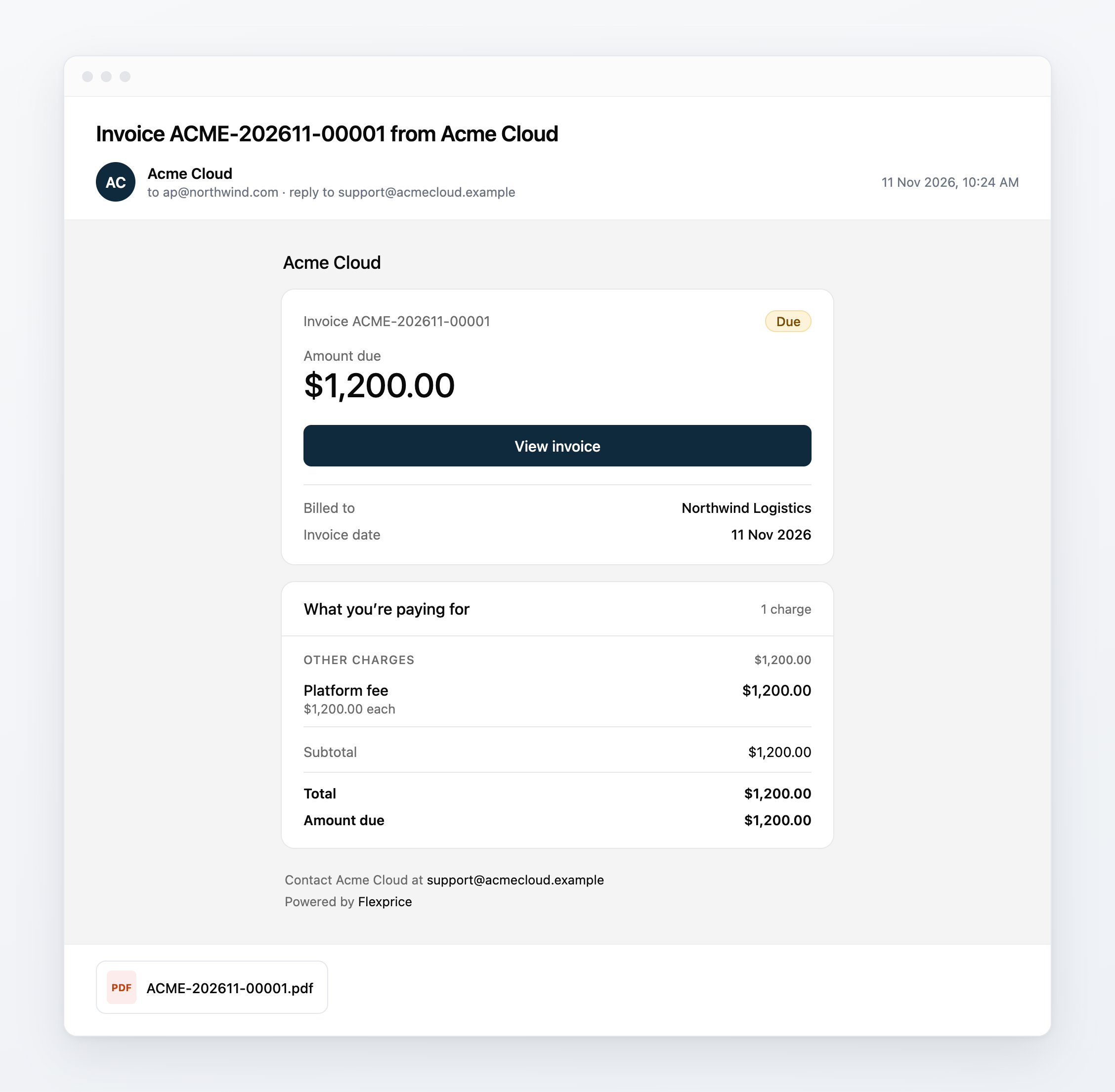
What your customer receives
- From your business: the email comes from your business name, with the subject “Invoice invoice number from your business name”.
- View invoice: opens the hosted invoice, where the customer can see the full invoice, download the PDF and pay online.
- A summary of the invoice: the amount due, who it is billed to, the invoice date and the charges with the totals. Long invoices list the first 10 charges, and the rest are on the hosted invoice.
- The PDF: attached to the email when Attach invoice PDF is on.
- Replies come to you: when the customer replies, the email goes to your organization’s help email, or to its billing email if there is no help email.
- Billing entities, if turned on: when billing entities are turned on for the environment, each invoice is emailed under the name of the entity that issued it, and replies go to that entity’s help or billing email, or to your organization’s if the entity has neither. With billing entities off, every email uses your organization’s name and emails.
Before you start
Add a help or billing email under Settings → Organization, so customers have somewhere to reply. Invoices are not emailed without one. If billing entities are turned on, a help or billing email on the invoice’s entity also works.Turning on emails
Go to Settings → Alerts & Emails → Emails, turn on the options you want, and select Save changes. The settings apply to the environment selected in the environment switcher, so turn them on separately for Sandbox and Production.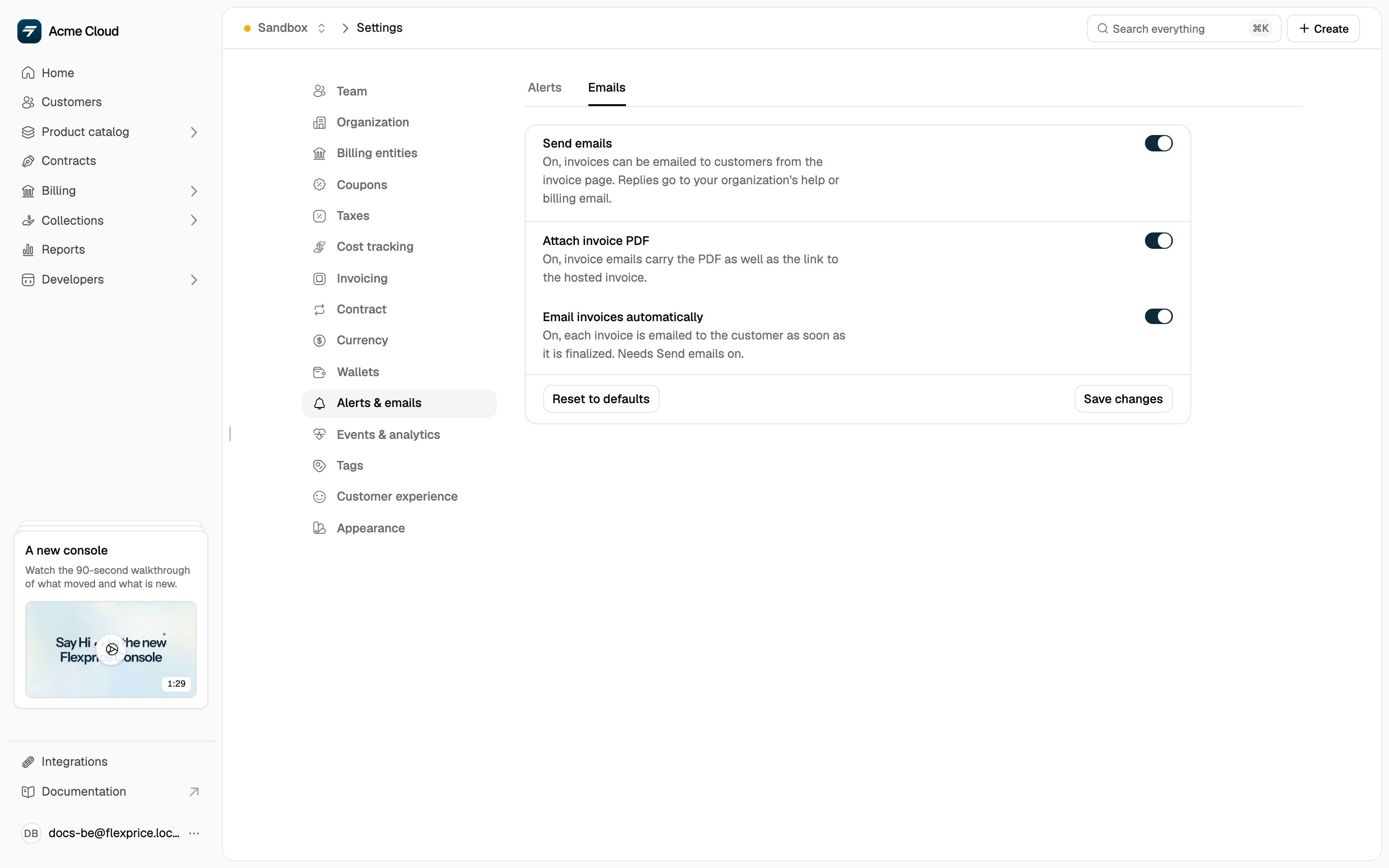
Sending an invoice
Open a finalized invoice under Billing → Invoices. Select Send in the Emails card, or Email invoice in the ⋯ menu.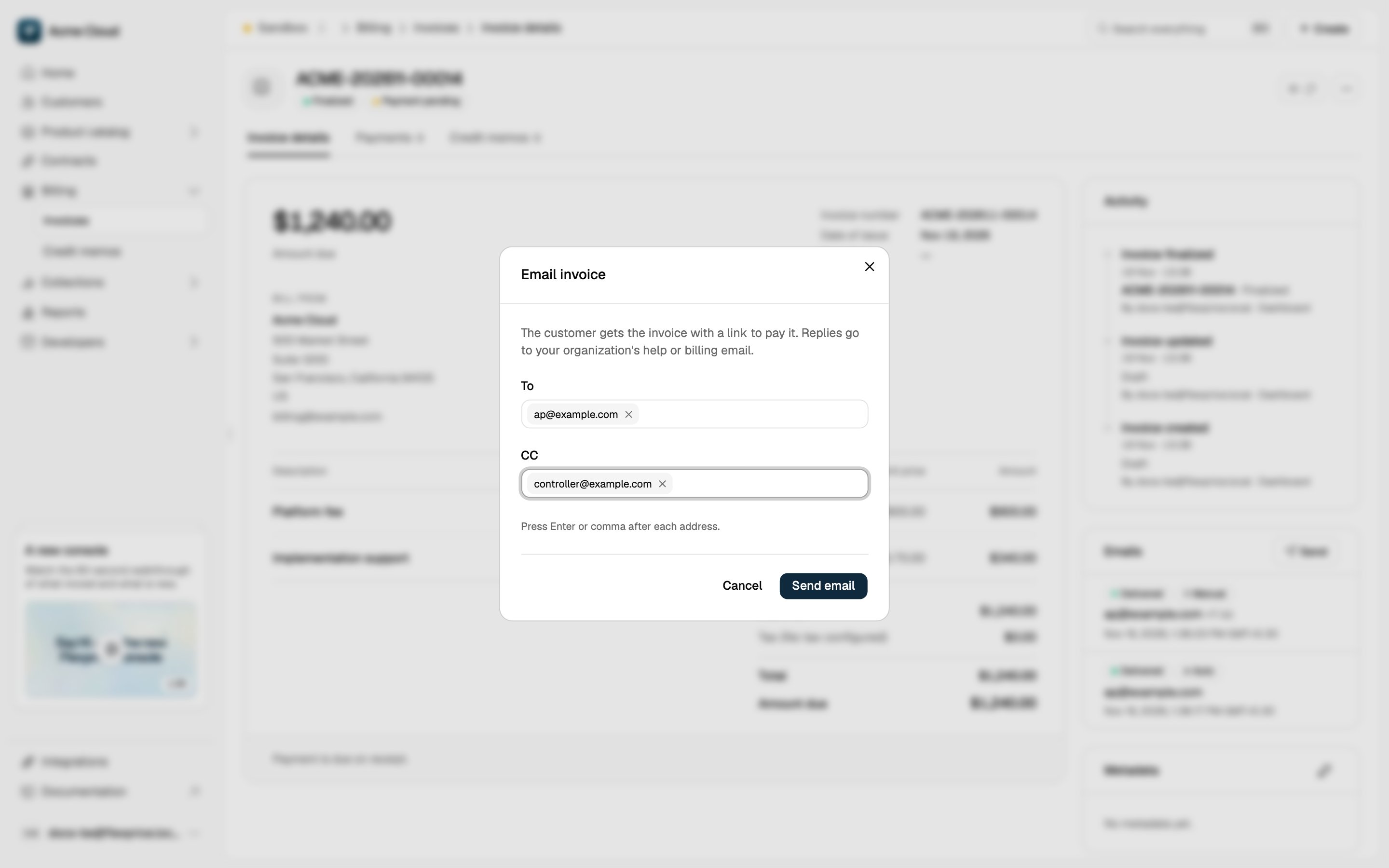
Sending invoices automatically
With Email invoices automatically on, Flexprice emails each invoice to the customer’s email address the moment it is finalized, so you don’t have to send it yourself. These emails are marked Auto in the Emails card. An invoice is not emailed automatically when the customer has no email address or the invoice total is zero. The Emails card shows these as Skipped, with the reason.Checking delivery
The Emails card on the invoice page lists every email sent for the invoice, newest first. Each one shows:- its status, such as Delivered or Bounced
- Manual if someone sent it, or Auto if it was sent on finalize
- who it was sent to, and how many people were copied
- when it was sent
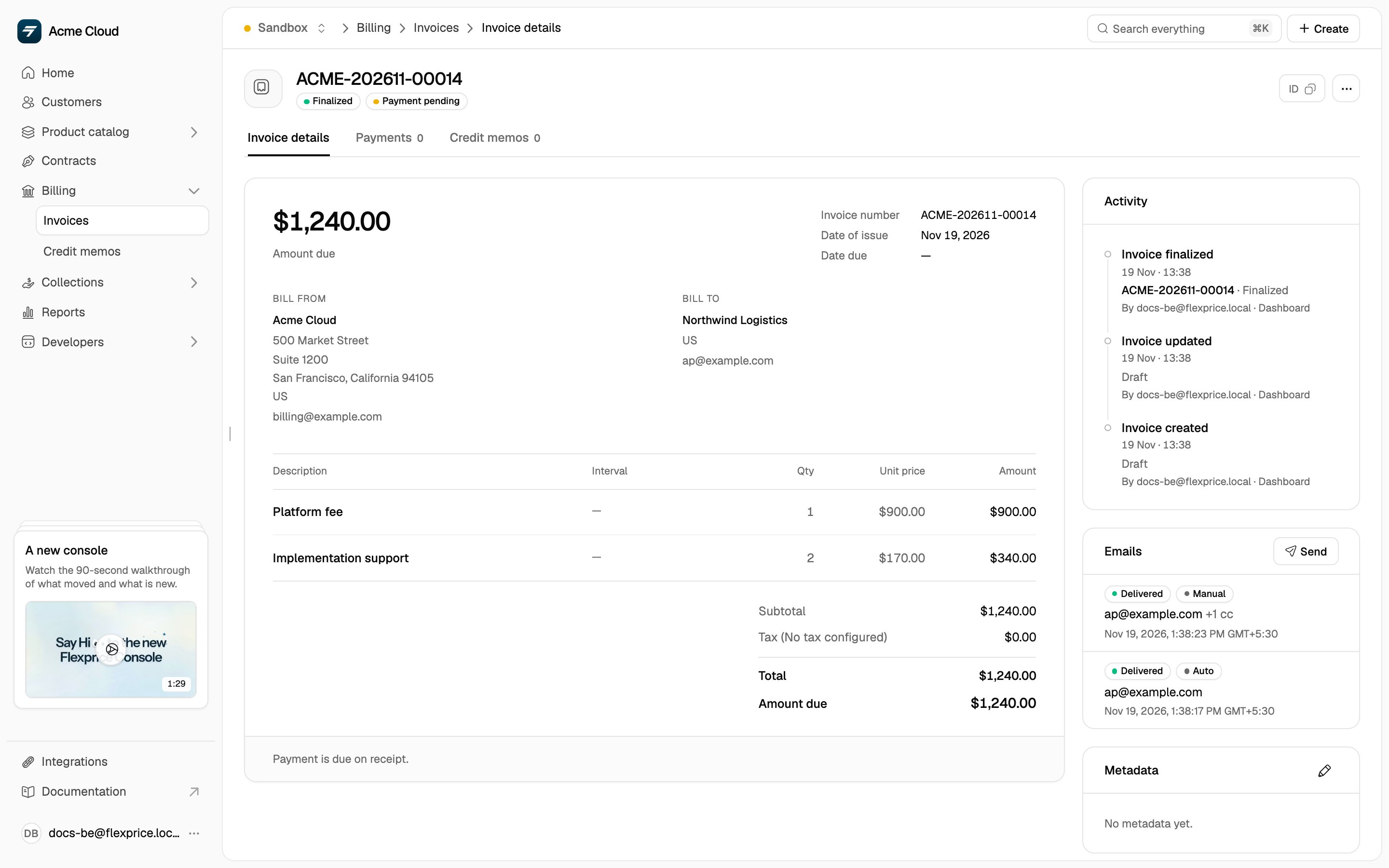
If you turn off Send emails while an email is still Queued, it is not sent and shows as Skipped.
Using the API
You can do the same from the API:- Turn emails on with the
email_notification_configsetting, which has the same three options:enabled,attach_invoice_pdfandauto_send. - Send an invoice with Email invoice to customer, optionally with your own
toandccaddresses. - See an invoice’s emails with List invoice emails, or search across invoices with Search emails.
Hosted Invoices
The page your customer opens from the email to view and pay the invoice.
Managing Invoices
Find, finalize, void and download invoices in the dashboard.