

Overview
A Nomod connection in Flexprice lets you:- Sync customers from Flexprice to Nomod
- Sync invoices from Flexprice to Nomod
- Create payment links for invoices so customers can pay via Nomod
- Receive payment (e.g. link paid, invoice paid) in Flexprice
- Process payments through Nomod’s secure checkout
Prerequisites
Before you start, have:- Nomod account – Nomod app (Play Store / App Store)
- Flexprice account – https://flexprice.io/
Keys you need
Create Nomod Connection
Using Flexprice Dashboard
Go to Flexprice dashboard → Integrations → Nomod → Add a connection.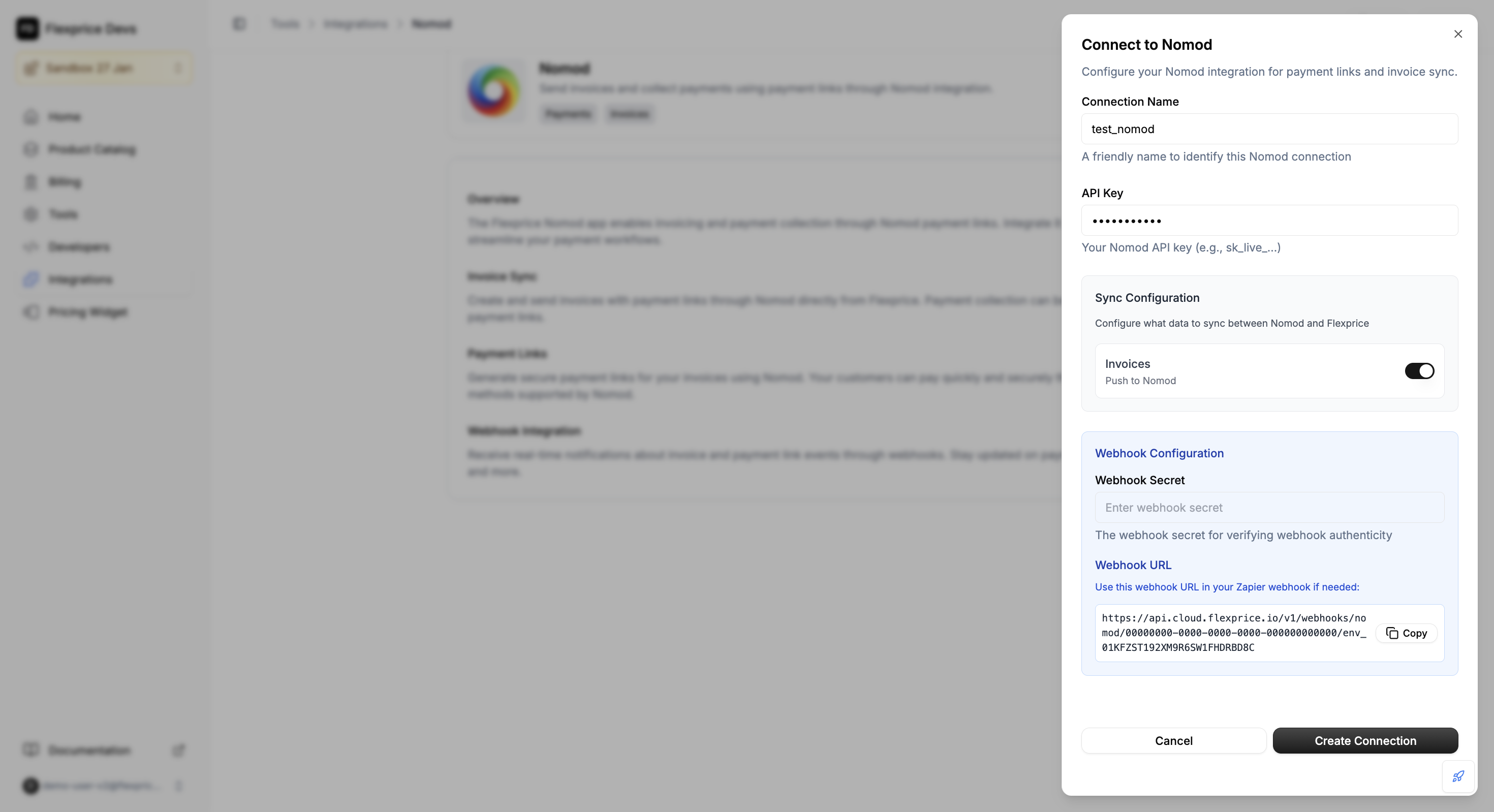
Setup at a glance
1
Set up connection name
Choose a name for this Nomod connection so you can identify it in Flexprice.
2
Get your Nomod API key
Get your Nomod API key from the Nomod app (Connect and Manage Integrations).
3
Invoice sync (outbound)
Invoice sync = true means Flexprice pushes invoices to Nomod.Invoice sync = false means Flexprice does not push invoices to Nomod (invoices stay only in Flexprice).
4
Set up webhook secret
Use any secure random name or string for webhook verification, and share it with Flexprice support as well.
Why Zapier?
1
Nomod does not support webhooks
Nomod does not support webhooks directly.
2
Zapier has a pre-made Nomod app for webhooks
Zapier offers a pre-built Nomod app for webhook events.
3
Provide the Zapier API key and webhook secret
Provide your Zapier API key and webhook secret to Flexprice so it can receive Nomod events (e.g. Link Paid, Invoice Paid).
4
Flexprice creates the Zapier connection
Flexprice creates and manages the Zapier connection for you. Contact Flexprice support to set up the Zapier Zap and webhook configuration.
Configure Connection Settings
Editing a Connection
1
Navigate to Integration Page
Navigate to the Nomod integration page
2
Find Connection
Find your connection in the “Connected Accounts” list
3
Edit Connection
Click the edit icon (pencil)
4
Modify Settings
Modify settings as needed
5
Save Changes
Click “Update Connection”
Deleting a Connection
1
Navigate to Integration Page
Navigate to the Nomod integration page
2
Find Connection
Find your connection in the “Connected Accounts” list
3
Delete Connection
Click the delete icon (trash) for the connection you want to remove.
4
Confirm Deletion
Confirm deletion in the dialog. The connection will be removed and Nomod payment processing for it will stop.
Security Best Practices
Credential Management
- Environment Separation: Use different keys for test/production
- Key Rotation: Regularly rotate your Nomod API keys
- Access Control: Limit API key permissions in Nomod
- Encryption: All credentials are encrypted at rest in Flexprice
Troubleshooting
Common Issues
Next steps
After your Nomod connection is set up:- Test payment links – Create a test payment link and confirm the flow works.
- Check events – Ensure your Zapier API key is correct and events reach Flexprice (Flexprice handles the Zapier integration).
- Enable invoice sync – If you want invoices pushed to Nomod, turn on Push to Nomod in the connection.
- Go live – When ready, switch to production keys in Nomod and Flexprice.